Last updated: November 2026
Learning how to scan documents with phone camera tools you already own takes about a minute, and it can replace a flatbed scanner for most everyday jobs. A modern phone camera, with the scanning tools built into Android and iPhone, can turn a letter, receipt, school form or signed contract into a clean, shareable PDF with no extra hardware. No scanner to buy, no paid app, no queue at a print shop. The scanner is already in your pocket, hiding inside everyday apps such as Google Drive on Android and Notes on iPhone. This guide covers each built-in method step by step, how to get sharp, glare-free results, and how to organise and share your scans.
What Makes a Scan Different From a Photo?
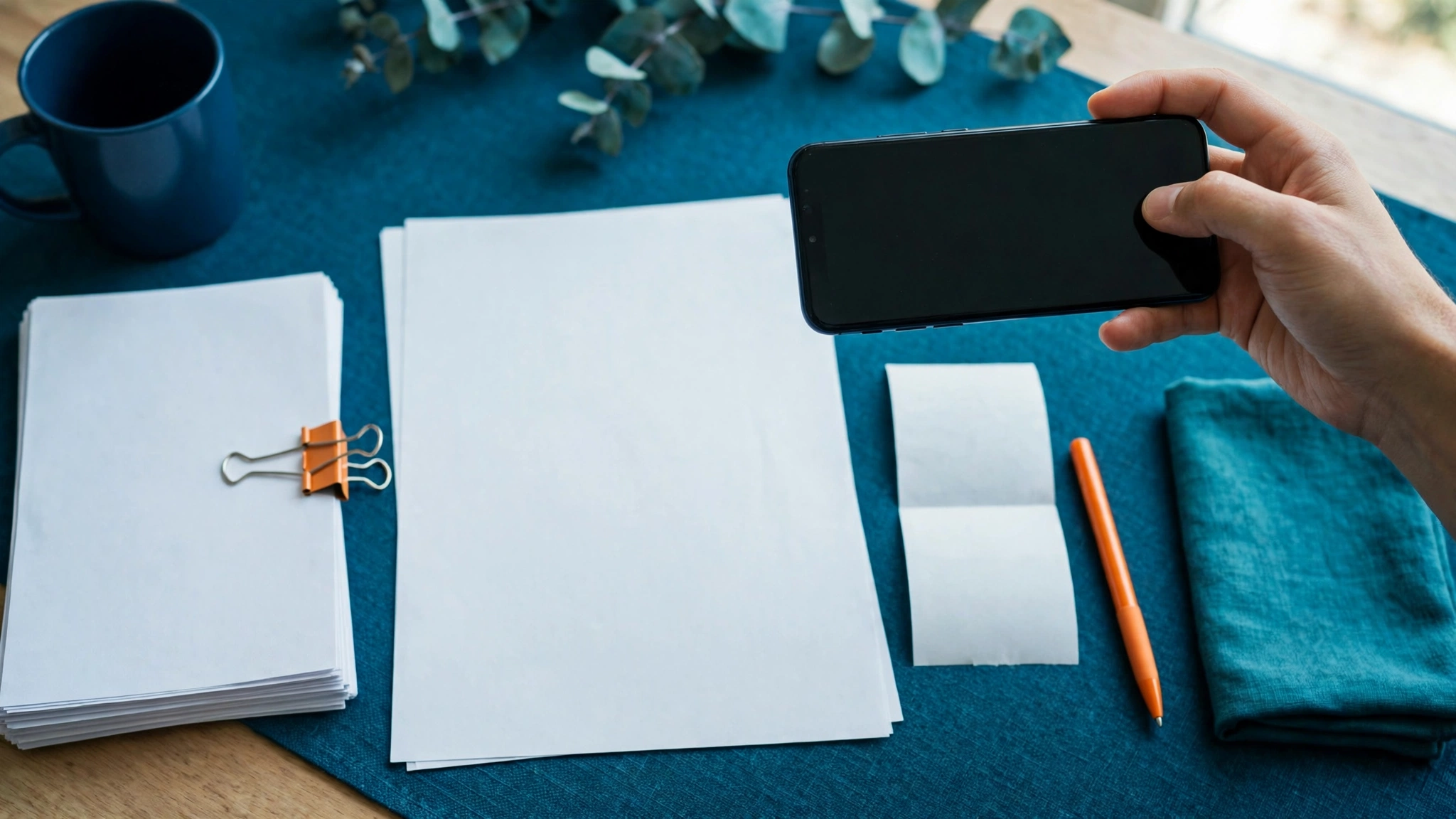
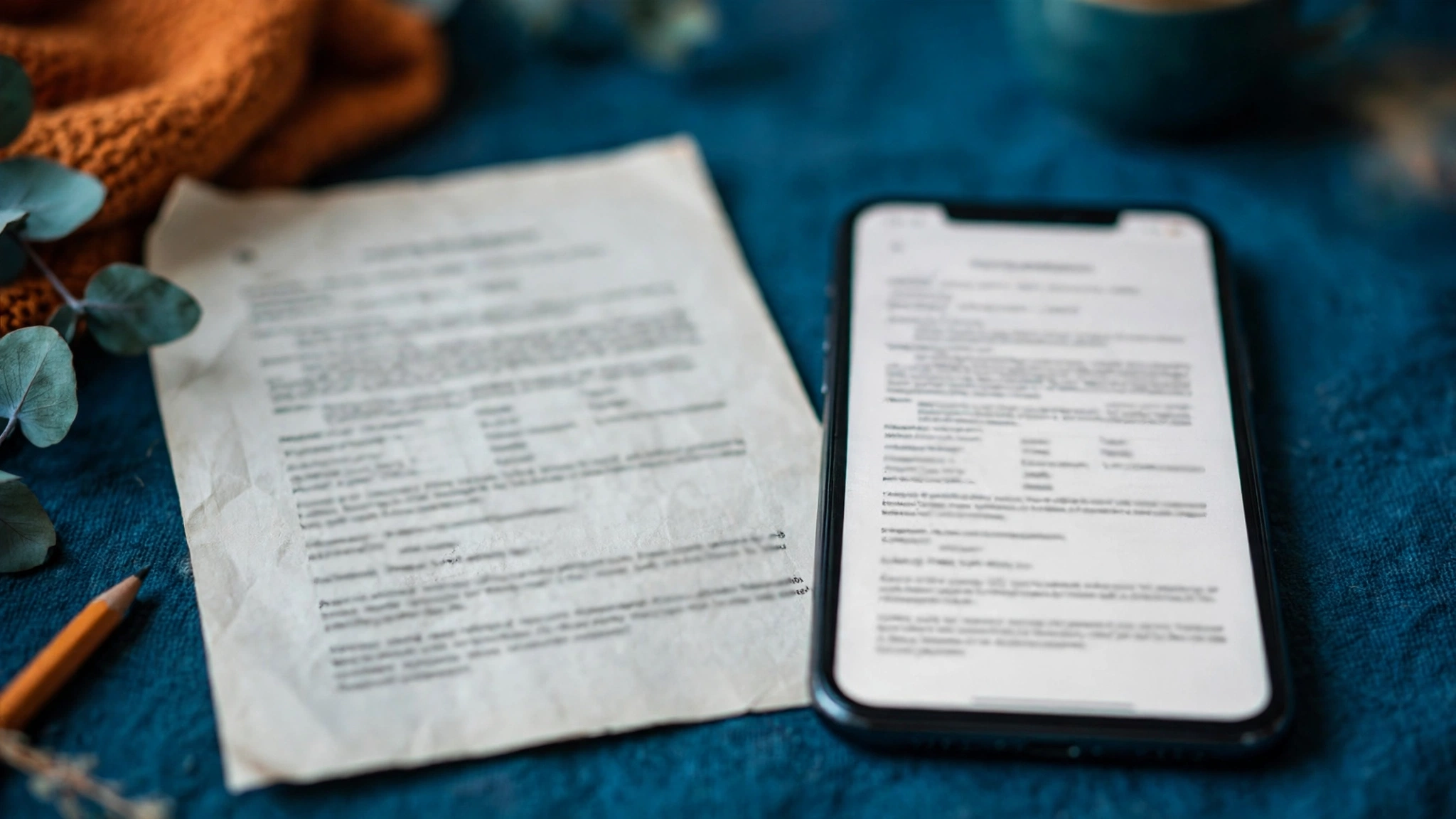
A photo of a document and a proper scan may look similar in your gallery, but they behave very differently when you read, print or share them. A photo keeps the background, the desk, the shadows and the perspective distortion from holding the phone at an angle. A scan removes all of that: the tool detects the page edges, straightens the perspective, boosts contrast so the text stands out, and crops away everything that is not the page. The result is a tidy rectangle of readable text, usually saved as a PDF anyone can open.
That matters most for official documents: a landlord, bank or employer will accept a clean PDF far more readily than a tilted photo with your kitchen table in the background. A multi-page PDF also keeps a contract in one file, in order, instead of scattering it across a dozen photos, and many scanners run text recognition, so you can search your files for a word on the page later. The phone does the hard work — your job is simply to give it a flat page, decent light and a steady hand.
How to Scan With Google Drive on Android
Google Drive is the easiest way to scan on most Android phones: it is already installed on nearly every device, the scan goes straight into your cloud storage, and the PDF is ready to email, print or share the moment you save it. It works the same on any Android phone.
Scanning step by step
Open Google Drive and tap the camera icon, usually at the bottom right or inside the plus button. Point your phone at the document and hold it steady while Drive detects the edges and shows a blue outline. When the outline looks right, tap the shutter to capture the page, then keep going for more pages — each capture joins the same scan. When you are done, tap the tick or save button, name the file, choose a folder, and Drive saves it as a PDF.
After each capture you can adjust the result: drag the corner handles if the crop missed an edge, and use the colour options to switch between colour, greyscale and black and white — black and white gives the sharpest text for plain pages; colour suits forms with stamps or signatures. If a page is blurry, tap retake and shoot it again. Name the file properly: "Electricity bill November 2026" is clear in six months; "Scan 12 Nov" is not. Scans saved to Drive back up to your Google account automatically, so they survive a lost or broken phone.
How to Scan on iPhone With Notes and Files
iPhone owners have two free built-in scanners. Notes is the quickest route for most people, while Files is handy when you want the PDF saved in a specific folder straight away. Both make clean multi-page PDFs with automatic edge detection.
In Notes, open a note, tap the paperclip or attachment icon, and choose Scan Documents. Hold the phone over the page and the camera will usually capture it automatically once it finds the edges, showing a yellow outline and then a thumbnail of the page. If automatic capture feels too eager, switch to manual and tap the shutter yourself. Keep adding pages, then tap Save, and the set lands in your note as a single PDF. Tap any page to crop it, switch it to greyscale or black and white, or rotate it if it came out sideways.
Files works the same way: open it, browse to the folder where the scan should live, tap the three-dot menu and choose Scan Documents. The finished PDF is saved directly into that folder instead of inside a note, which suits documents you want to keep with other files, such as tax paperwork or school forms. Quality is the same either way, and both let you share the PDF by email, message or AirDrop, or print it from your phone.
Samsung and Other Android Built-In Scanners
Google Drive is not the only scanner on Android. Samsung phones have one built into the Camera app, and several other makers include their own, so check what your phone already offers first. On a Samsung phone, open Camera, point it at a document, and look for the yellow "Scan" or "Tap to scan" prompt when the camera recognises a page. Tapping it captures a clean, straightened scan to save or share, and Samsung Notes can scan pages into a note much like Apple Notes.
Other Android phones often hide a scanner in the camera or gallery app too: some show a document mode when they detect a page, and some file managers include a scan option. The name varies by brand — Xiaomi, Oppo and Vivo all ship their own — so open the Camera app, point it at a piece of paper, and watch for a scan prompt. If nothing appears, the Google Drive method above works on every Android phone. The scanner already on your phone is almost always good enough; a separate app only earns its place when you need batch scanning or text recognition the built-ins lack.
How to Get a Sharp, Clean Scan Every Time
The difference between a professional-looking scan and a rushed photo usually comes down to a little care, not a better phone. Put the document on a flat, plain background — a dark desk works well for white paper, because the contrast helps the scanner find the edges. Smooth out folds, and weigh down a curled corner with a mug placed outside the page.
Lighting matters more than anything else. Bright, even, natural light is best: stand near a window during the day, or under a ceiling light that spreads evenly across the page. Avoid a single lamp from one side, which throws a shadow across the text, and never let your own shadow fall on the page. Hold the phone directly above the document — the scanner can correct a small tilt, but a steep angle shrinks the text at the far edge. If your hands shake, rest your elbows on the table.
Glare is the most common enemy of a good scan: glossy paper, laminated cards and plastic sleeves reflect light back into the camera and wash out the words. Move the lamp to the side, or step away from a window until the bright spot disappears. If the page is in a plastic sleeve, take it out — the difference is dramatic. Check the result before you put the document away: zoom into the preview and read a line or two. If the text looks soft, wipe the lens with a clean cloth, move closer, and take it again. A smudged lens causes more blurry scans than any setting.
Scan to PDF or Save as a Photo?
Most built-in scanners save as a PDF by default, and for documents that is usually right. A PDF keeps all the pages in one file, in order, and opens the same way on every phone, tablet and computer. Offices, banks and government forms expect it, and it prints cleanly without resizing. For a contract, an ID, a bill or anything official, choose PDF every time.
A JPG suits a single image you want to edit or share quickly, and it is the natural choice for scanning a photo rather than a document. The rule is simple — documents become PDFs, pictures stay as photos. File size matters as well: a colour scan of a long document can grow large and slow to send, while black and white or greyscale cuts the size sharply with no loss of readability for plain text. Keep quality high for anything with a signature, stamp or fine print.
Organising, Sharing and Exporting Your Scans
A scan you cannot find is barely better than a document you never scanned. Organise at the moment you save: give every scan a clear name — "Passport renewal form 2026" beats "Scan 1" — and put related scans in one folder, such as "House Bills" or "School Forms". A folder system only works if you use it at the moment of scanning, not in a tidy-up session you never get round to.
Sharing is straightforward once a scan is a PDF. In Google Drive, tap the three-dot menu and choose Share to send a link, or Send a Copy to attach the file to an email or message. A link suits large files, but check the permission first — a link set to "anyone with the link" can be opened by anyone it is forwarded to. For ID cards or bank letters, attach the file directly to one person instead, and avoid sending identity scans over public Wi-Fi.
Pairing scans with a notes app makes them easier to use later: a meeting handout is far more useful beside the notes you took in the same meeting. Notion is a popular choice for keeping scanned documents, notes and to-do lists in one place. For a broader look at tools that keep your phone organised, our round-up of the best productivity apps for Android covers the apps that pair well with a paperless routine. Back your scans up, too — a PDF on one phone only is one dropped phone away from disappearing, so keep them in a cloud folder that syncs automatically.
Common Problems, Fixes and When to Use a Dedicated Scanner App
Most scanning problems have a simple cause and a quick fix. If the scanner cannot find the page edges, the background is too similar in colour to the paper — move the document onto a darker surface. If pages come out crooked, you are holding the phone at an angle; use the grid lines to line up the edges. If text looks blurry, clean the lens, move closer, and hold the phone still a beat longer. If one side is shadowed, move the light or shift so you are not standing between the light and the page. If the file is too big to email, switch to black and white and lower the quality setting.
When a dedicated scanner app is worth it
For most people, the built-ins are enough. A dedicated app earns its place when you scan often or in bulk, or need features they skip: text recognition that turns a scan into editable, searchable text, batch scanning, automatic file naming, and stronger clean-up for faded pages. Apps such as CamScanner offer these extras and are a sensible step up if you scan receipts, invoices or paperwork every week.
Before installing any scanner app, check two things. First, install it only from the official Google Play Store listing, and check the developer name matches the real company — these apps ask for camera and storage access, so a copycat is a real risk. Second, read what the free version includes: many charge a subscription for unlimited scans, text recognition or removing watermarks. If you only scan occasionally, the built-in tools cost nothing and carry no watermark, which is hard to beat. Try the free version for a week before paying, and never install a modified or "premium unlocked" version from a third-party site — a common source of malware.
Head-to-Head Comparison
| Method | Best for | Scan to PDF | Text search (OCR) | Extra app needed |
|---|---|---|---|---|
| Google Drive scan | Android users, cloud backup | Yes | Yes | No |
| iPhone Notes scan | Quick iPhone scans into notes | Yes | Yes | No |
| iPhone Files scan | Saving straight into folders | Yes | Yes | No |
| Samsung Camera scan | Fast one-off scans on Samsung | Image, then share as PDF | Limited | No |
| Other Android built-ins | Whatever your phone already has | Varies | Varies | No |
| Dedicated scanner apps | Bulk scanning, advanced OCR | Yes | Yes, more features | Yes |
Google Drive is the best all-rounder on Android: it scans to PDF, searches the text and backs up in one step. iPhone Notes and Files match it on quality, with the choice coming down to note or folder. Samsung's camera scan is fastest for a single page, but less consistent for multi-page documents. Dedicated apps win on features, but charge for the best parts and suit regular scanners only. For an occasional form or receipt, the scanner already on your phone is the right answer.
Frequently Asked Questions
Can I scan documents with my phone camera without downloading an app?
Yes. On Android, Google Drive has a built-in scanner that saves straight to PDF, and Samsung and other makers include their own. On iPhone, Notes and Files both scan with no download needed. All detect the page edges automatically and produce a clean PDF you can share or print.
How do I scan multiple pages into one PDF on my phone?
Use one scan session for every page. In Google Drive, keep tapping the shutter for each new page before you press save, and they combine into a single PDF. In iPhone Notes or Files, keep adding pages and tap Save once at the end. If pages are already saved separately, a scanner app or PDF tool can combine them.
Why do my phone scans look blurry or crooked?
Blur usually comes from a dirty lens, a shaky hand or poor light — clean the lens, rest your elbows on the table, and move somewhere brighter. Crooked scans come from holding the phone at an angle, so hold it directly above the page and use the on-screen grid. If the crop cuts off a corner, drag the corner handles in the preview before saving.
Is it safe to scan passports, ID cards and bank documents with my phone?
Yes, as long as you store and share them carefully — keep the PDF in a cloud folder or notes app protected by your phone lock and two-factor authentication. Share it directly with the person or organisation that needs it, not via a shareable link anyone could forward, and delete scans you no longer need. Never scan identity documents with an app you do not trust.
Do phone scans count as proper copies for official forms?
In most everyday cases, yes — a clean PDF is widely accepted for school forms, rental applications, expense claims and job applications. Banks and government offices may still ask for a certified copy or the original for identity checks, so check the form first. If in doubt, ask the organisation whether a phone scan is acceptable.
The Verdict
You do not need a scanner, and for most jobs you do not even need a new app. The tools already on your phone — Google Drive on Android, Notes and Files on iPhone, and the camera scanner on Samsung and other Android phones — turn paper into a clean, shareable PDF in under a minute. Quality depends far more on light, a flat surface and a steady hand than on which app you use. Save as a PDF for anything official, name files properly, file them straight away, and back them up to the cloud.
A dedicated scanner app is worth it only when you scan often enough to need its extras: faster batch scanning, better text recognition and stronger clean-up. For the occasional form or receipt, the built-in scanner is free, watermark-free and already installed. Start with what you have, scan one real document today, and check it on a bigger screen — if you can read every line comfortably, you have done it right. For more tools that keep your paperwork organised, browse the Productivity section and find the apps that fit the way you work.