Last updated: November 2026
If you want to check battery health Android phones make it surprisingly awkward. Unlike an iPhone, which shows a simple battery health percentage in Settings, most Android phones hide the information behind menus and diagnostic codes. Your phone may still report that the battery is at 100 percent, yet die by early evening, because that percentage tells you how full the battery is, not how much it can still hold. This guide walks through every practical way to check battery health on Android: the built-in tools on newer phones, the hidden diagnostics on Samsung and Pixel devices, and the free apps that estimate remaining capacity.
What Battery Health Actually Means
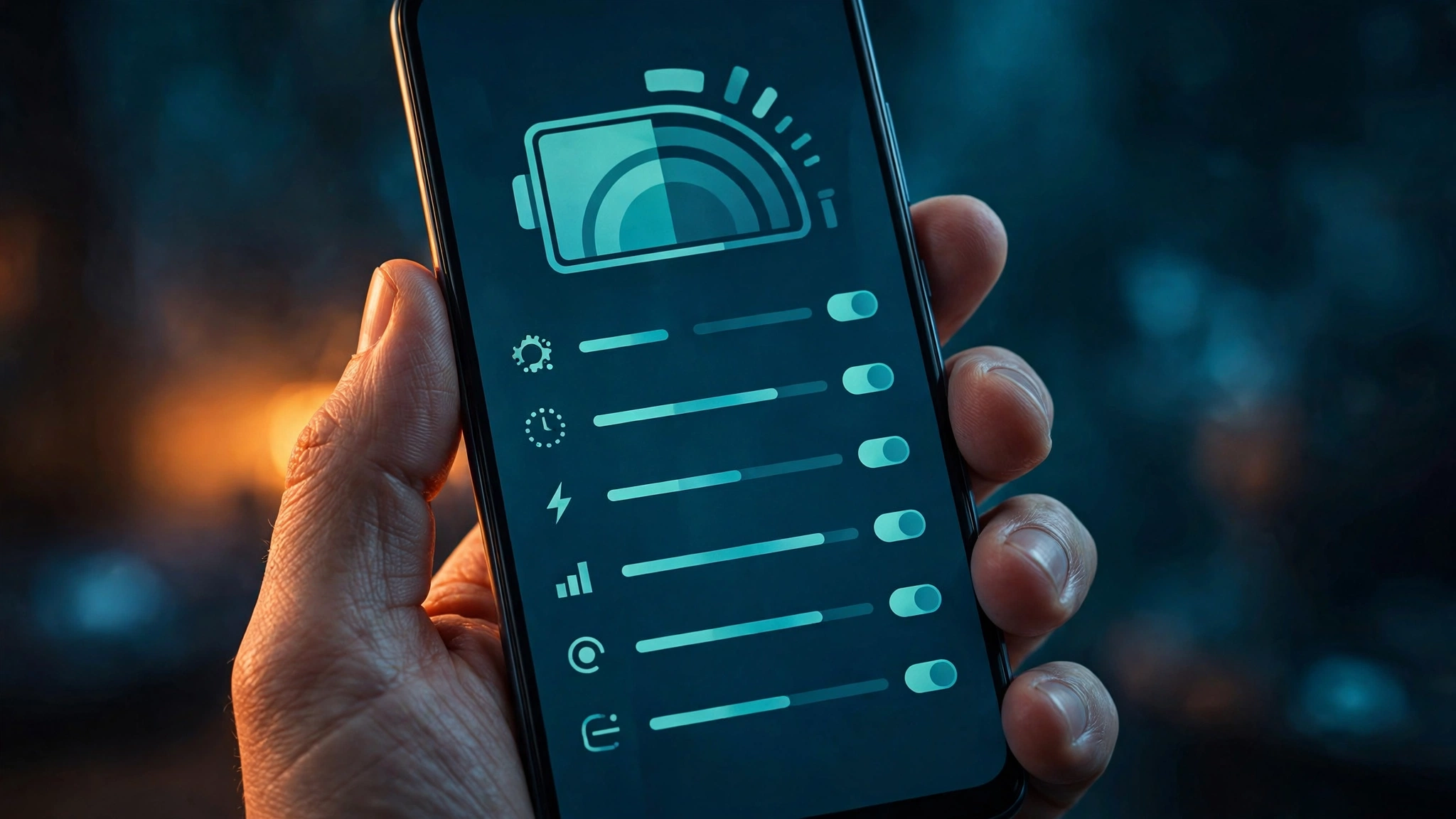
Battery health is a measure of how much charge your battery can still hold compared with when it was new. Every rechargeable battery wears out a little with each charge cycle, and a charge cycle means using the equivalent of a full 100 percent of capacity, whether that happens in one go or across several partial top-ups. After hundreds of cycles, the battery’s maximum capacity drops, so a phone that once lasted a full day may now need charging by mid-afternoon. The chemistry inside a lithium-ion battery slowly degrades as well, especially when the phone is regularly left hot or drained to zero repeatedly.
That is why the battery percentage on your screen can be misleading: it shows how full the battery is relative to its current maximum, not its original maximum. A phone showing 100 percent might hold only 80 percent of the energy it held when new. Checking battery health means finding that hidden number, so you can decide whether the battery is fine or a replacement is worth the cost. A battery that has dropped to roughly 80 percent of its original capacity is generally considered worn.
The Quick Check: Android’s Built-In Battery Settings
The simplest place to start is the battery screen that every Android phone already has. Open Settings, then tap Battery, and you will see a graph of battery use since the last full charge, plus a list of the apps that have used the most power. This screen does not show a health percentage, but it tells you a great deal. A healthy battery drains steadily through the day. If the graph drops sharply, or the phone loses a large chunk of charge while sitting idle overnight, the battery is struggling or an app is misbehaving in the background.
On Android 14 and later, some phones have gone further. Pixel phones running recent software show battery information in Settings, then Battery, then Battery information, where you can see the manufacture date and the cycle count, the number of full charge cycles the battery has been through. A cycle count in the low hundreds is normal for a phone a year or two old, while a count approaching five hundred or more means the battery has done a lot of work. Samsung phones running One UI 6 and later include a similar battery health view in Settings, then Battery and device care, then Diagnostics, where a battery status check can report whether the battery is good, weak, or needs attention. If your phone offers one of these built-in checks, use it first, because it reads data straight from the battery itself. Before you start, it is also worth closing down anything that is making the phone work harder than it should; our guide on how to speed up a slow Android phone covers the background apps and settings that quietly drain battery life.
Using the Hidden Diagnostics Menu on Samsung and Pixel
Many Android phones have a hidden diagnostics menu that most owners never see, and it can reveal battery details the regular Settings screen hides. On Samsung Galaxy phones, open the Phone app and dial ##4636##, which opens a testing menu with a Battery information entry showing the battery’s health status, voltage, temperature and technology. On some Samsung models you can also dial *#0228# to open a battery status screen. If the code does nothing, your carrier or software version may have disabled it.
Pixel phones do not use the same dialler codes, but recent versions of Android include a diagnostics or battery information entry in Settings, then About phone, where you can find the cycle count and the date the battery was manufactured. If the codes are blocked on your phone, the free app route described below reads the same system data. One word of caution: do not change anything inside a hidden testing menu unless you know what it does. These menus are meant for technicians, and while looking at the battery information is harmless, tapping other options can reset settings or run tests you did not intend.
Reading Battery Usage to Spot a Weak Battery
Before you install anything, the battery usage screen can already tell you whether the battery itself is the problem or whether something else is draining it. Open Settings, then Battery, then Battery usage, and look at the apps ranked by power use. On a healthy phone, the screen itself is usually the biggest consumer, followed by the apps you use most. If an app you barely opened is near the top of the list, it may be running in the background, and restricting its background activity in Settings will often fix the drain.
The pattern of the drain matters as much as the total. A battery that drops from 100 to 80 percent in the first hour of light use, then drains more slowly, may just be badly calibrated, and a full charge cycle can sometimes fix the reading. A battery that drops steadily but much faster than it used to, and dies at 15 or 20 percent instead of reaching zero, is more likely to be genuinely worn. Sudden shutdowns are the clearest warning sign of all: if your phone switches off at 25 or 30 percent charge, especially in cold weather or while opening the camera, the battery can no longer deliver the power the phone asks for.
Using AccuBattery to Estimate Your Battery’s Capacity
If your phone does not show a battery health figure, the most reliable free way to get one is AccuBattery, a well-known app available from the Google Play Store. It measures how much charge flows into your battery during charging sessions and compares that with the capacity your phone’s manufacturer states. After a few charging sessions, it produces an estimated battery health percentage, and the estimate gets more accurate the longer you use it. Install it only from the official Play Store listing and check that the developer name matches.
To use it well, charge your phone from a low level, ideally below 15 percent, up to a high level, ideally above 90 percent, while the app is running, and repeat that a few times over several days. After three or four sessions the health estimate settles down. AccuBattery also shows the battery’s temperature during charging and the charge speed. Remember that the number is an estimate, not a laboratory measurement, so treat a reading of 87 percent as roughly the high eighties, not exactly 87. If you ever need to install an app from outside the Play Store, read our guide to installing APK files on Android first, so you know how to check what you are downloading.
How to Read the Results: What Counts as Good or Bad
Once you have a health percentage or a status reading, the next question is what it means. A battery at 95 percent or above is effectively new. Between 85 and 95 percent is normal for a phone that is a year or two old, and you should notice little difference in everyday use. From 80 to 85 percent, the wear starts to show: the phone may need a top-up on heavy days. Below 80 percent, the battery is considered worn by most manufacturers, and a replacement starts to make sense if you plan to keep the phone for another year or more.
The cycle count gives the same picture from a different angle. Most phone batteries are rated for around 500 full charge cycles before their capacity drops to about 80 percent. A phone with 300 cycles and 90 percent health is doing well, while a phone with 600 cycles and 78 percent health has simply lived a full life. If two different methods disagree, for example the built-in check says Good while AccuBattery estimates 82 percent, trust the trend rather than either single number, and re-check after a few more charging sessions.

Comparison: Every Way to Check Battery Health on Android
| Method | What it shows | Cost | Accuracy | Best for |
|---|---|---|---|---|
| Built-in battery settings (Android 14 and later) | Cycle count, manufacture date, basic status | Free | High, reads system data | A quick first check on Pixel and newer phones |
| Samsung battery diagnostics | Battery status, voltage, temperature | Free | High, reads system data | Samsung owners who want an official verdict |
| Hidden dialler codes (##4636##) | Health status, voltage, temperature | Free | High, where enabled | A fast check without installing anything |
| Battery usage screen | Drain pattern, top apps, idle drain | Free | Indirect, no percentage | Telling a worn battery from a greedy app |
| AccuBattery | Estimated health percentage, capacity, temperature | Free with paid upgrade | Good after several sessions | The closest thing to a percentage on most phones |
| CPU-Z | Health status, voltage, temperature, technology | Free | Moderate, status only | A quick second opinion |
| DevCheck | Reported capacity, voltage, temperature | Free with paid upgrade | Moderate, depends on system data | Comparing reported capacity with the advertised figure |
The built-in checks are the most trustworthy, because they read data directly from the battery, but they are not available on every phone. AccuBattery is the best option for most people, because it works on almost any Android phone and gives a percentage you can track over time. Use two methods together when the result will decide whether you pay for a replacement: if both point the same way, you can trust the answer.
Simple Habits That Slow Battery Wear
Heat is the biggest enemy of a battery: fast charging, gaming and hot cars all wear it out faster, as does holding it at 100 percent for hours or draining it to zero again and again. Age plays a part too, and no app can restore lost capacity. What you can do is slow the decline, and the habits below make a real difference over the life of a phone.
The single most useful habit is to keep your battery between roughly 20 and 80 percent most of the time, topping up during the day instead of charging to 100 percent every night. Many phones now offer a battery protection setting that stops charging at 80 or 85 percent, and switching it on is the easiest way to adopt this habit without thinking about it. Avoid letting the phone run completely flat, and do not leave it charging in a hot place.
Charging speed matters as well. Use the charger that came with your phone or a reputable charger of the same power rating, and save the fastest charging for when you actually need it. Keep the phone cool while it charges, and take it out of a thick case if it feels warm. Switching on adaptive battery and battery optimisation in Settings helps the phone learn which apps it can put to sleep, which reduces the number of charge cycles you use in a day. Lowering screen brightness, shortening the screen timeout, and turning off features you are not using also stretch each charge further, which means fewer cycles and slower wear. If your phone already feels slow as well as short-lived, background apps may be doing more damage than the battery, so check which apps are running before you blame the hardware.
When to Replace the Battery Instead
There comes a point where habits are no longer enough, and replacing the battery is the sensible move. The clearest sign is a health reading below 80 percent combined with daily life that is noticeably affected: the phone dies before the day ends, shuts down suddenly at 20 or 30 percent, or needs charging twice a day for ordinary use. A swollen battery is a different matter entirely and needs immediate attention: if the back of the phone is lifting, the screen is separating from the frame, or the phone rocks on a flat surface, stop using it and take it to a repair shop straight away, because a swollen battery can be a safety risk.
Before paying for a replacement, check whether the cost is worth it for your phone. A battery replacement is usually far cheaper than a new phone, and for a phone that is otherwise working well, it can add another year or two of useful life. Use an official service centre or a reputable repair shop, and ask for a genuine or high-quality replacement battery, because a cheap battery can be worse than the worn one it replaces. Keep the receipt and the warranty, and check the new battery’s health with one of the methods in this guide to confirm it is reading as new. If your phone is also struggling with storage or app crashes, read our guide to fixing the app not installed error on Android before deciding whether the phone has other problems worth fixing first.
Frequently Asked Questions
How do I check battery health on Android without an app?
Open Settings, then Battery, and look for battery information or diagnostics, which newer Pixel and Samsung phones include. Samsung owners can also dial ##4636## in the Phone app to open a testing menu with battery health details. If your phone has neither option, a free app such as AccuBattery can estimate the health percentage.
What is a good battery health percentage for Android?
A battery at 90 percent or above is in good shape, and anything above 85 percent is normal for a phone that is a year or two old. Between 80 and 85 percent you will notice shorter battery life on heavy days. Below 80 percent the battery is considered worn, and a replacement is worth considering if you plan to keep the phone.
Can I see the battery health percentage on a Samsung phone?
Yes, on Samsung phones running One UI 6 or later, go to Settings, then Battery and device care, then Diagnostics, and run the battery status check. Some models also support the *#0228# code in the Phone app. Older Samsung phones may not show a percentage, in which case AccuBattery is the simplest way to get an estimate.
Is AccuBattery accurate?
AccuBattery gives a good estimate rather than an exact measurement. It measures the charge flowing into your battery over several charging sessions and compares it with the capacity your phone should have. After three or four full charging sessions the estimate is usually close to the true figure. Use it to track the trend over weeks rather than trusting a single early reading.
How long should an Android phone battery last?
Most phone batteries are designed to keep around 80 percent of their original capacity after about 500 full charge cycles, which for most people means two to three years of normal use. Heavy users who charge every day will reach that point sooner, while light users who top up little and often may take longer.
The Verdict
Checking battery health on Android takes a little more effort than it should, but it is worth doing, because it turns a vague feeling that your phone does not last as long as it used to into a number you can act on. Start with the built-in battery settings or diagnostics on your phone, because they read data from the battery and cost nothing. If they do not give you a percentage, install AccuBattery from the Play Store and charge the phone a few times.
Whatever the number says, the habits matter just as much as the check: keep the battery between 20 and 80 percent when you can, keep it cool, and use the battery protection setting if your phone has one. And if the battery is worn but the phone is otherwise fine, a replacement battery is one of the best-value repairs you can buy. For more practical Android guides, browse the How-To Guides section and keep your phone running well for longer.