Last updated: November 2026
Losing a phone is bad enough. Losing everything on it is far worse, and it happens more often than most people expect: a cracked screen that never turns on again, a phone stolen on a night out, or a factory reset that wipes years of photos before anyone thinks to check what was saved. If you are looking for the best backup apps Android has to offer, the good news is that you probably do not need to spend anything, and the setup is simple. Android already backs up much of your data on its own, Google’s own tools cover the essentials, and a handful of third-party apps fill the gaps for people who want more control. This guide explains what Android saves automatically, compares five backup apps honestly, and shows you how to build a backup routine that runs itself, so the next time something goes wrong with your phone, it is an inconvenience rather than a disaster.
Why Backing Up Your Android Phone Matters
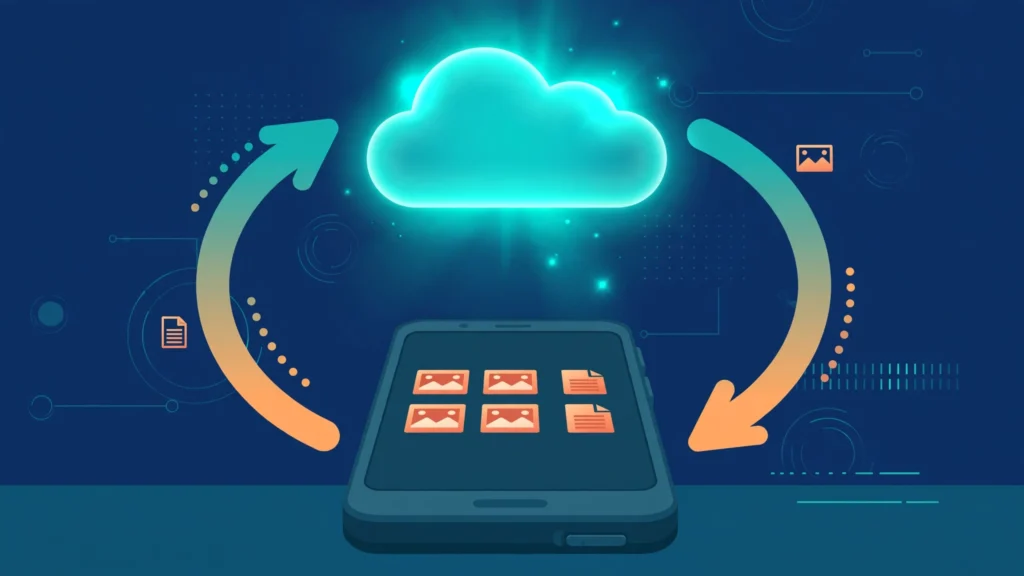
Most people only think about backups after they need one, and by then it is too late. Your phone holds things that cannot be replaced: photos of family and holidays, messages from people no longer around, contacts built up over years, and documents you may need for work. A phone can be replaced in a day. A decade of photos cannot. Backups are the only real protection, because no phone is immune to theft, damage or failure.
Phones get dropped, stolen and water damaged every day, batteries swell, storage fails, and software updates occasionally go wrong in ways that force a reset. Even a phone that works perfectly today can be gone tomorrow. A backup does not stop any of that happening, but it turns a catastrophe into a hassle: sign in on a new phone, your data comes back, and you carry on. The best backup is the one that runs automatically, because a backup you have to remember to do is a backup that will not happen on the week you need it most.
What Android Already Backs Up for Free
Before downloading anything, it is worth knowing what Android already does on its own. Signed in with a Google account, your contacts, calendar events, call history and many app settings are saved automatically, and Google Photos can back up your pictures and videos if you switch it on. Many apps also save their own data through Android’s backup service, so when you set up a new phone, apps, their settings and some of their data come back with them.
There are limits, though. Files in your Downloads folder, music and documents stored outside the usual locations, and data from apps that do not use Google’s backup service may not be included. WhatsApp chats, for example, are backed up through WhatsApp’s own Google Drive backup, which you have to switch on inside the app. Photos are only backed up if Google Photos backup is enabled, and the free storage on a Google account is limited, so heavy photo users may run out of room. The built-in tools are a solid foundation, but they are not the whole story, and that is where a dedicated backup app earns its place. For more everyday Android tools, see our round-up of the best utility apps for Android.
What to Look for in a Backup App
A good backup app should do three things well: back up the data you care about, do it automatically, and make restoring it simple. Photos and contacts are the minimum, but the best apps also handle messages, call logs, app data, documents and files in folders you choose. If an app only backs up photos, it is a photo app, not a backup app.
Then look at where the backup goes. Cloud backup is convenient because your data is safe even if your phone is lost, but it depends on your internet connection and your storage allowance. Local backup to your own storage or a computer gives you more control and no monthly cost, but it only helps if the backup itself survives. The best apps offer both. Also check whether backups run on a schedule you set, whether the app encrypts your data, and whether restoring to a new phone is a one-tap job or a fiddly manual process. An app that makes backups automatic, encrypted and easy to restore is worth paying for.
Google One: The Best Built-In Option
Google One is the backup most Android users should start with: it is already on your phone and covers the essentials with almost no setup. It backs up your photos and videos through Google Photos, your contacts, messages and call history, and app data for apps that support Android backup, all to your Google account. When you set up a new Android phone and sign in, much of your data restores itself automatically, with backups running over Wi-Fi while your phone charges and sits idle.
Storage and what to watch for
The catch is storage. Every Google account comes with a limited amount of free space shared across Gmail, Drive and Photos, and heavy photo and video users can fill it quickly. Subscriptions add more space for a modest recurring cost, so check how much you actually use before paying. Google One also cannot back up files stored outside the usual locations, and restoring app data depends on each app supporting Android backup, which not all of them do. Even so, for most people, Google One plus Google Photos is the simplest reliable backup there is. Switch it on in Settings under Google, then Backup, and check occasionally that backups are actually running.
Samsung Smart Switch: The Best for Moving Phones
Samsung Smart Switch is the best tool for moving everything from an old phone to a new Samsung phone, and a solid backup app in its own right. It transfers contacts, photos, videos, messages, call history, apps and settings, directly between two phones over a cable or Wi-Fi, or from a backup saved on your computer. The transfer is thorough, keeps your home screen layout and many app settings, and works from most Android phones and even iPhones.
Backup to your computer
Smart Switch also lets you back up your phone to a Windows PC or a Mac, which suits anyone who prefers keeping a copy of their data at home rather than in the cloud. A local backup costs nothing beyond the storage on your computer, and it is not affected by cloud storage limits. The downside is that it is not automatic: you have to connect your phone and run the backup yourself, so it only protects you as far as your last manual backup. Use it for the big move between phones and for an occasional full local backup, and let Google One handle the day-to-day automatic work.
Swift Backup: The Best for Power Users
Swift Backup is the pick for Android users who want real control over what gets backed up and where it goes. It backs up apps, app data, messages, call logs, wallpapers and Wi-Fi settings, and lets you choose exactly which apps and data to include. Backups can go to your phone’s storage, an SD card, Google Drive, Dropbox or other cloud services, and you can schedule them to run automatically. For someone who changes phones often or simply wants a proper copy of their app data, Swift Backup does things Google One cannot.
Root, paid features and who it suits
There is a catch worth knowing about. Backing up app data properly on Android is restricted by the system, so Swift Backup’s full app-data backup needs either root access or a workaround using a computer connection, which is beyond what most users want to deal with. The free version covers messages, call logs and basic backups, while the premium version adds scheduled cloud backups and batch restore. If you are a confident user who knows what root means and wants a serious backup tool, Swift Backup is the best of its kind. If that sounded like another language, stick with Google One, which needs no technical setup at all.
FolderSync and Autosync: The Best for Your Own Cloud
FolderSync and Autosync solve a different problem: backing up specific folders on your phone to a cloud service of your choice, on a schedule you control. FolderSync supports a long list of services, including Google Drive, Dropbox, OneDrive and your own server, and it can sync two ways, so changes on either side are kept in step. Autosync does a similar job with a simpler interface, focused on one service at a time. Both are ideal for folders Android’s built-in tools ignore, such as work documents, downloaded files, or photos kept outside Google Photos.
Setting them up right
The strength of these apps is also their weakness: you set them up yourself, choosing which folders to sync, how often, and in which direction. A wrong setting can sync deletions as well as additions, so read the options before you switch a folder pair on. Once configured, they run quietly in the background. They suit anyone who already pays for cloud storage, or who runs their own server and wants their phone’s files there automatically. For everyone else, Google One’s simpler approach is the better starting point. When you are clearing out old files to make room, a good cleaner such as SD Maid 2 SE can help you find the leftover files that old apps leave behind before you back up.
Head-to-Head Comparison
| App | What it backs up | Where it stores it | Cost | Best for |
|---|---|---|---|---|
| Google One | Photos, contacts, messages, call history, app data | Google account cloud storage | Free allowance, paid plans for more space | Most Android users |
| Samsung Smart Switch | Contacts, photos, videos, messages, apps, settings | New phone, or a computer | Free | Moving to a new Samsung phone |
| Swift Backup | Apps, app data, messages, call logs, Wi-Fi settings | Local storage, SD card, Google Drive, Dropbox | Free tier, premium for scheduling and cloud | Power users who want control |
| FolderSync | Any folders you choose | Google Drive, Dropbox, OneDrive, your own server | Paid app, no subscription | Syncing specific folders to your own cloud |
| Autosync | Any folders you choose | One cloud service at a time | Free tier, paid for multiple folders | Simple folder sync to one service |
| WhatsApp backup | Chats and media | Google Drive | Free, uses your Drive space | Keeping your chats safe |
The table makes the roles clear. Google One is the automatic safety net, Smart Switch is the moving-day tool, Swift Backup is the power user’s choice, and FolderSync and Autosync cover the folders nothing else touches. WhatsApp deserves its own line because its chats are backed up separately: switch it on inside WhatsApp under Settings, then Chats, then Chat backup. Most people need only two of these: Google One for the everyday automatic backup, plus one other for the gap they care about.

Setting Up a Backup Routine That Runs Itself
A backup routine only works if you never have to think about it, so set it up once and let it run. Start with Google One: switch on backup in Settings under Google, then Backup, make sure Google Photos backup is on, and check that your storage allowance is big enough for your photos. Then open WhatsApp and switch on its Google Drive backup, choosing daily if your chats matter to you. Next, check any other app that holds important data, such as your notes app, and make sure its own backup or sync is switched on.
Cloud vs local: use both
Cloud and local backups protect against different things, so the safest setup uses both. A cloud backup survives anything that happens to your phone: theft, loss, fire or water damage. Your data sits on a server somewhere else, and you can restore it onto any new phone by signing in. The downsides are that it needs an internet connection, it depends on your storage allowance, and your data sits on someone else’s servers, so switch on encryption where it is offered.
A local backup, to your computer or an external drive, costs nothing beyond the storage, works without internet, and keeps your data entirely under your control. Its weakness is obvious: if the backup lives in the same house as the phone, a burglary or a fire can take both. So keep two copies in different places: an automatic cloud backup for the everyday safety net, and an occasional local backup of your photos and important files.
Once a month, do a two-minute check: confirm the last backup date is recent in Google One, check your newest photos are backed up in Google Photos, and glance at your storage usage. If you keep important files in a specific folder, set up FolderSync or Autosync for it, and once in a while back up your photos to your computer as a second copy. Finally, protect the account that holds your backups: use a strong, unique password for your Google account, switch on two-factor authentication, and keep those credentials in a password manager rather than reusing one password everywhere. Our review of Bitwarden for Android explains how a free password manager works. A backup is only as safe as the account that holds it.
Frequently Asked Questions
What is the best free backup app for Android?
Google One is the best free option for most people: it is built into Android and backs up photos, contacts, messages and app data automatically. The free storage allowance is limited, so heavy photo users may need a paid plan. For free folder syncing to a service you already use, Autosync’s free tier is a good companion.
How do I back up my Android phone before a factory reset?
Switch on Google One backup in Settings under Google, then Backup, and run a backup now. Make sure Google Photos backup is on and your newest photos are uploaded. Open WhatsApp and run a manual chat backup, then copy any notes or files stored outside the usual folders to Google Drive or your computer before you reset.
Can I restore a backup to a different Android phone?
Yes. Set up a new Android phone with the same Google account and Google One restores your contacts, messages, app data and settings, while Google Photos restores your pictures. On a Samsung phone, Smart Switch can move everything from your old phone directly, including your home screen layout.
Does Google back up my WhatsApp chats automatically?
No. WhatsApp chats are backed up separately through WhatsApp’s own Google Drive backup, which you have to switch on inside the app under Settings, then Chats, then Chat backup. Choose how often it runs and whether to include videos, and check occasionally that the last backup date is recent.
How much storage do I need for an Android backup?
It depends on your photos and videos, which take up the most room. A phone with a few thousand photos and some videos can easily need tens of gigabytes, and the free allowance on a Google account is shared with Gmail and Drive. Check your usage in Google One, and if you are close to the limit, clear out old files or move to a paid plan before your backups stop running.
The Verdict
So, what are the best backup apps for Android? For most people, the answer is simple: Google One, switched on and left to run, plus WhatsApp’s own backup for your chats. That combination covers the data most people actually lose, costs nothing for light users, and needs no effort once it is set up. Moving to a new Samsung phone? Add Smart Switch for the transfer. If you want real control over app data and folders, Swift Backup or FolderSync fill the gaps Google leaves, and an occasional local backup to your computer gives you a second copy in a different place.
The app you choose matters less than the habit. A backup that runs automatically beats a perfect backup you never get round to doing, and the best time to set one up is now, while your phone still works. Switch on Google One today, check WhatsApp’s backup, and do the two-minute monthly check. Then, if you want more control over the tools on your phone, browse the Tools & Utilities section for the apps that fit the way you use your Android.