Last updated: November 2026
The question of ChatGPT app vs website Android users keep asking has a simple answer and a longer one. The simple answer is that both versions connect you to the same chatbot, with the same account, the same chat history and, on a paid plan, the same model choices. The longer answer is that the way you reach ChatGPT changes how pleasant it is to use, how quickly you can start a conversation, what you can do with voice and files, and how much battery and mobile data you burn along the way. On a phone, those practical differences matter far more than on a desktop. This guide compares the official Android app and the mobile website side by side, so you can choose the version that fits the way you work. If you are still weighing up the wider field, our round-up of the best AI chatbot apps for Android puts ChatGPT in context alongside its main rivals.
How the Two Versions Actually Work
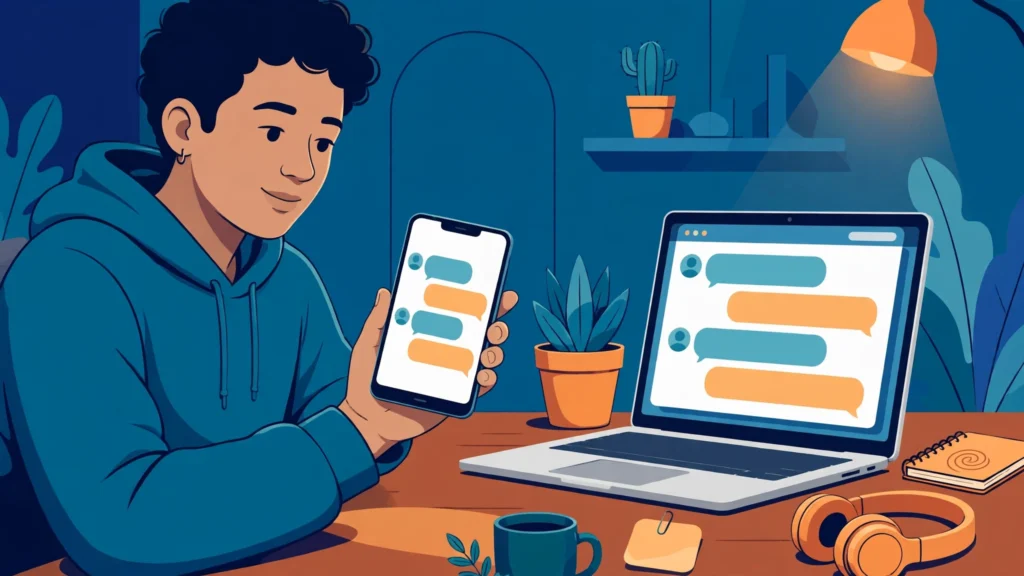
At their core, the app and the website are two doors into the same service. You sign in with the same OpenAI account, your conversations sync between them, and anything you start on your phone can be continued on a laptop later. The app is a dedicated programme you install from the Google Play Store, built specifically for Android phones and tablets. It can sit on your home screen, send you notifications, use your microphone and camera directly, and keep you signed in between sessions. The website runs inside your mobile browser — Chrome, Firefox, Samsung Internet or whichever browser you prefer. There is nothing to install or update, and nothing taking up storage space, but you are working inside a browser tab that shares its attention with every other tab you have open.
That difference shapes almost everything else. The app is optimised for touch, with larger buttons, a chat list designed for a narrow screen and quick access to voice mode. The website is the desktop interface adapted for a small screen, which can feel cramped, especially when you are juggling a long conversation and the on-screen keyboard. OpenAI has kept the two broadly in step, but the app tends to receive new mobile features first, while the website works everywhere without an install. For most people, the practical question is which one gets out of your way when you want a quick answer on the bus, in a meeting or halfway through a recipe.
Getting Started and Signing In
Installing the app takes a couple of minutes and one decision that matters: make sure you are downloading the official ChatGPT app, published by OpenAI, from the Google Play Store. Search results and adverts can surface lookalike apps with similar names and icons, some of which charge for features that are free in the official app or collect more data than they should. Check the developer name before you tap install, and never install a modified or so-called premium unlocked version from a third-party site — there is no legitimate unlocked version, and those files are a well-known route for malware. Once installed, you sign in with your existing account or create one with an email address, Google account or Apple ID, and you stay signed in afterwards.
The website asks for none of that. You open your browser, navigate to the ChatGPT site, sign in once, and you are chatting. That is a genuine advantage if you are borrowing a phone, using a work device where you cannot install apps, or simply trying ChatGPT for the first time. The trade-off is that browsers are more likely to sign you out, especially if you clear cookies or use private browsing. You may also find yourself typing your password more often than you would like, which is irritating on a small keyboard. If you use ChatGPT every day, the app’s persistent sign-in is a quiet quality-of-life win. If you use it once a week or less, the website may suit you better, and you can add a home-screen shortcut to the site in Chrome, which gives you an app-like icon without the install.
Everyday Chatting: Speed, Features and Limits
For plain text conversation, the two versions feel remarkably similar once you are inside a chat. You type a message, the reply streams in, and you can copy text, regenerate an answer, edit an earlier message or start a new chat from the sidebar. Model choice, where your plan allows it, is available in both, and your history is shared, so a chat started in the app appears on the website and vice versa. The differences show up at the edges, in the small frictions that add up over a week of daily use.
The app is generally a little quicker to open and resume. Tapping an icon and landing straight in your last conversation beats opening a browser, finding the right tab among a dozen others, and waiting for the page to reload. It also handles long conversations more gracefully, with smoother scrolling and a composer that stays put while the keyboard appears and disappears. The website has one advantage that power users value: it is easier to keep several chats open in separate tabs and use browser features such as find-in-page. If your habit is to ask one question, get an answer and move on, the app wins on speed. If your habit is research — several long chats open at once — the browser’s tabs can be genuinely useful. Free and paid limits apply to your account, not to the version you use, so switching between app and website does not give you extra free messages or a higher limit.
Voice, Images and Files: What Each Version Handles Best
This is where the app pulls clearly ahead for most Android users. Voice mode is the standout feature: in the app, you tap the microphone or the voice icon and talk naturally, with the app handling listening, transcription and spoken replies in one smooth flow. It feels like a conversation rather than dictation, and it works well for hands-free moments — walking, cooking, or drafting ideas aloud when typing feels slow. The website can use your microphone too, but only through the browser, which means extra permission prompts, less reliable background behaviour, and a voice experience that can stop the moment you switch tabs or lock your screen. If voice is central to how you plan to use ChatGPT, the app is the better choice by a clear margin.
Images and files are closer, but the app still has the edge. Both versions let you upload photos and documents and ask questions about what you have shared. The app makes it simpler to take a photo directly, pick one from your gallery, or share an image into ChatGPT from another app using Android’s share menu — a small thing that becomes a habit quickly when you are asking about a document, a sign or a handwritten note. The website can upload files from your phone’s storage, but the flow involves more taps and depends on how well your browser handles file pickers. One area where the website holds its own is working with links and copied text, and downloading a file ChatGPT has produced is straightforward in a browser. For a broader look at what today’s AI apps can do, our top AI apps for Android guide covers the strongest options across every category.
Privacy, History and Account Controls
Privacy works the same way in principle on both versions, because the controls belong to your account rather than to the app or the browser. You can review and delete individual chats, clear your history, turn off training on your conversations where the setting is available, and manage data controls from your account settings. Deleting a chat in the app removes it from the website too, and the same applies in reverse. What differs is the trail each version leaves on your device and the permissions each one asks for.
The app requests access to your microphone, camera and storage when you use those features, and you can review or revoke each permission from Android’s settings at any time. The browser version leaves cookies and browsing history in your browser, which means anyone with access to your phone could see that you visited the site, even if your chats are behind your account password. Private browsing avoids some of that trail, at the cost of signing in each time. Either way, the habits that matter most are the same on both versions: avoid pasting passwords, bank details, medical records or other sensitive personal information into any chatbot, keep your account protected with a strong, unique password and two-factor authentication, and delete chats containing anything personal once you no longer need them. If you use ChatGPT for work, check your employer’s policy first — some workplaces restrict which AI tools staff may use, whichever version you open.
Performance, Battery and Data Use on Android
On a modern mid-range phone, both versions run well, but they use your phone’s resources differently. The app is a single, focused programme, and once installed it tends to load faster and scroll more smoothly than a browser tab rendering the same interface. It also manages background behaviour better: it can keep a voice conversation going while you glance at another app, and it does not have to reload the whole interface every time you return to it. The website shares the browser’s memory with every other tab you have open. If you keep forty tabs alive, the ChatGPT tab may reload when you return to it, losing your place in a long conversation.
Battery and data use follow a similar pattern. The app is generally a little kinder to your battery during long sessions, because it is not running a full browser engine underneath the chat interface. A browser with many tabs can drain power faster, especially during long voice sessions. Data use is broadly comparable for text chats; the difference comes from images, voice and repeated page reloads, which can add up on a limited mobile plan. The app’s one cost is storage: it takes up space, and its cache grows over time, though you can clear it from Android’s settings. The website takes up no storage at all, which makes it the better option on a phone that is nearly full.
Offline Use, Travel and Switching Devices
Neither the app nor the website works fully offline, and it is important to be clear about that before you board a flight expecting otherwise. ChatGPT needs an internet connection to send your message to OpenAI’s servers and receive a reply, so without Wi-Fi or mobile data, neither version can generate new answers. What differs is what you can still do while you are offline. The app lets you open and read your past conversations without a connection, which is useful if you want to revisit an itinerary, a recipe or a set of notes you generated earlier. The website is less reliable here: if the tab reloads while you are offline, you may see an error page instead of your history until you are back online.
When you are travelling, the app handles patchy connections more gracefully, reconnecting and resuming a conversation rather than forcing a full page reload, and it works more predictably when you switch between Wi-Fi and mobile data. The website can struggle on weak hotel or airport Wi-Fi, where a half-loaded page may need several refreshes. On the other hand, the website follows you onto any device — a borrowed laptop, a library computer, a friend’s tablet — without an install, and that flexibility is hard to beat. Many people end up using both: the app on their own phone, the website on any other screen. That hybrid habit is perfectly sensible, and since your history syncs, there is no penalty for switching. If you want to get more out of AI on the move, our Claude AI guide for Android productivity shows how a second chatbot can cover tasks where ChatGPT is not the strongest fit.
Head-to-Head Comparison
| Feature | ChatGPT Android app | ChatGPT mobile website |
|---|---|---|
| Install needed | Yes, from Google Play Store | No, works in any browser |
| Sign-in persistence | Stays signed in | May sign you out, especially in private browsing |
| Opening speed | Faster, lands straight in your last chat | Slower, depends on browser and open tabs |
| Voice mode | Smooth, hands-free, works while multitasking | Works via browser, stops when you switch tabs |
| Photo and file upload | Easy, share directly from other apps | Works, but more taps and browser file pickers |
| Multiple chats at once | One chat at a time, switch from sidebar | Several chats in separate browser tabs |
| Reading past chats offline | Yes, history available without a connection | Unreliable, tab may reload to an error page |
| Battery use | Generally lighter for long sessions | Heavier if the browser has many tabs open |
| Storage use | Takes up phone storage, cache grows over time | No storage used |
| Works on any device | Only where the app is installed | Any device with a browser |
| Best for | Daily use, voice, quick answers on the move | Occasional use, research, borrowed devices |
The app wins on speed, voice, file sharing and offline reading, while the website wins on flexibility, zero storage and multi-tab research.

Frequently Asked Questions
Is the ChatGPT app free on Android?
Yes, the official ChatGPT app is free to download from the Google Play Store, and the free plan gives you access with usage limits. A paid Plus subscription unlocks higher limits and additional features, and those benefits apply on both the app and the website because they belong to your account, not to the version you are using.
Do I need the app, or can I just use the website?
You can use the website alone and get the full chatbot experience, including chat history and model choice on a paid plan. The app is worth installing if you use ChatGPT daily, rely on voice mode, or want faster access and offline reading of past chats. If you use it occasionally or on shared devices, the website is perfectly adequate.
Is the ChatGPT app safe to install on Android?
The official app, published by OpenAI on the Google Play Store, is safe to install. Check the developer name before downloading, and avoid lookalike apps and any modified version promising free premium access — those are not official, and they are a common source of malware and data theft. Keep the app updated so you receive security fixes promptly.
Why does the website keep signing me out on my phone?
Browsers sign you out when cookies expire, when you clear browsing data, or when you use private browsing. Using your browser’s normal mode and saving your login in a password manager will reduce sign-outs. If it keeps happening, the app’s persistent sign-in may suit you better.
Can I use ChatGPT offline on Android?
No, neither version can generate new replies without an internet connection, because the answers are produced on OpenAI’s servers. The app does let you read your previous conversations while offline. Download or screenshot anything you will need before you lose signal.
The Verdict
For most Android users, the app is the better default. It opens faster, keeps you signed in, handles voice mode far more smoothly, makes sharing photos and files effortless, and lets you read past chats offline. Those are the things that matter on a phone, where you are usually asking a quick question with one hand and moving on. The website remains a good fallback: it needs no install, works on any device, and its browser tabs suit longer research sessions. The best setup for many people is both — the app on your own phone for daily use, the website on any other screen.
Whichever version you choose, install only the official app from the Google Play Store, keep your account protected, and avoid pasting sensitive personal information into a chatbot. Start with the app if you use ChatGPT daily, stick with the website if you use it occasionally, and switch freely — your chats will follow you. For more Android AI picks across every category, browse the AI Apps section and find the tools that fit the way you work.