Last updated: November 2026
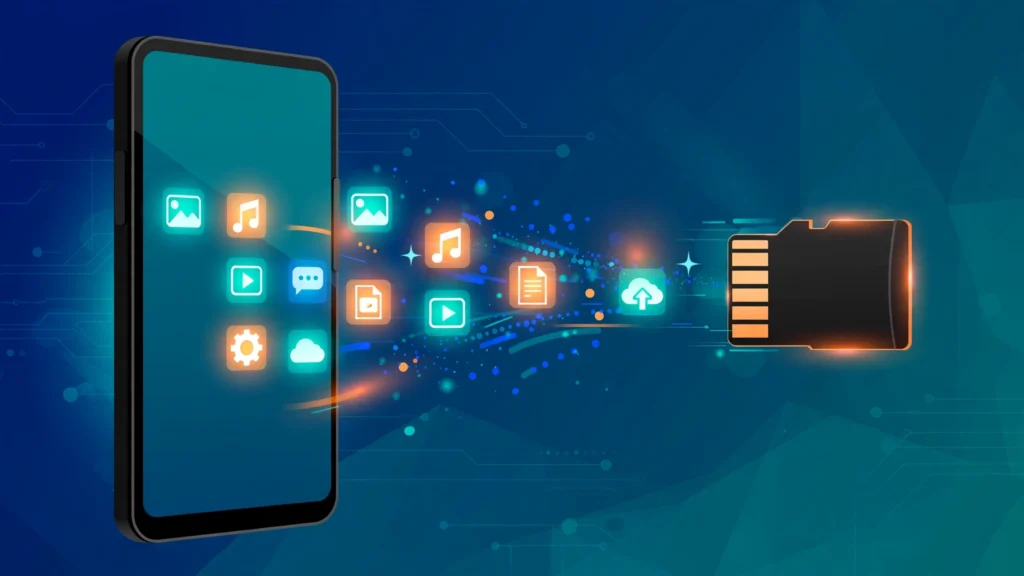
Learning how to move apps to SD card Android phones is one of the most useful skills for anyone with a phone that is always running out of space. A single large game can take up several gigabytes, and once internal storage fills up, your phone slows down, updates fail, and the camera refuses to take photos. Moving apps to an SD card can free up precious room — but it does not work the way many people expect. Some apps can move, some cannot, and on many modern phones the option has been hidden, renamed or removed entirely. This guide explains the built-in method step by step, covers adoptable storage, and shows you the safe alternatives when moving apps is not possible.
Before You Start: What an SD Card Can and Cannot Do
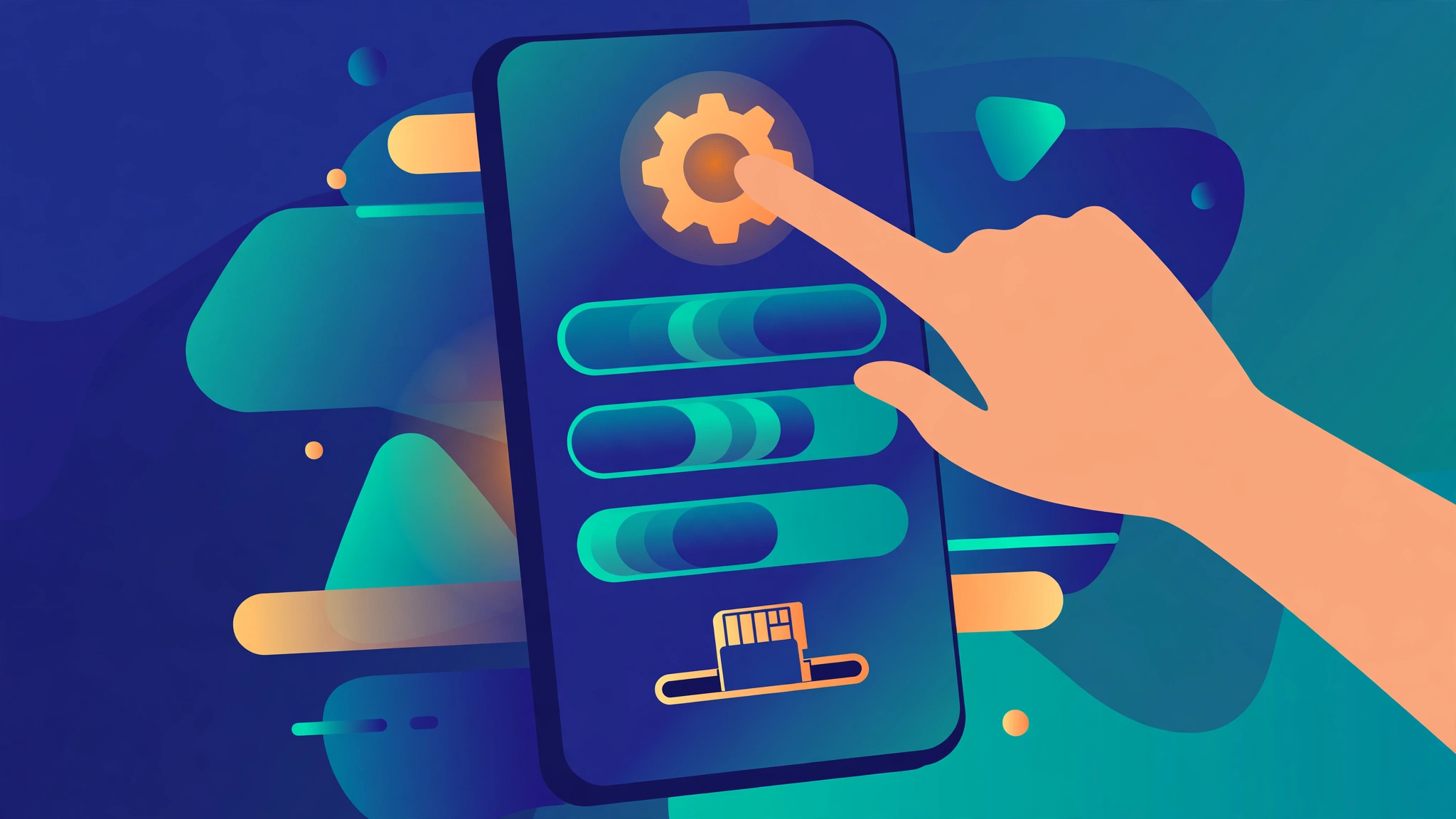
Before you move anything, it helps to understand what an SD card actually does in an Android phone. An SD card is a small removable memory card that adds extra storage, while internal storage is the fast memory built into your phone, where the system and your apps live by default. An SD card is slower than internal storage, and it can be removed, lost or damaged, so Android treats it as secondary storage rather than an equal partner.
That matters for two reasons. First, apps run more slowly from an SD card than from internal storage, especially large games. Second, not every app can be moved: apps that run in the background, use widgets, or provide system services usually have to stay on internal storage. Many app developers also choose not to allow their app to be moved at all, because they want it to run at full speed.
There is also a practical limit: most modern flagship phones no longer have an SD card slot at all. If your phone does have one, it is usually in the SIM tray and accepts a microSD card. Always buy from a reputable brand — cheap, no-name cards are slower and more likely to fail, which can mean losing your photos and files.
The Built-In Method: Move an App to SD Card
On phones that support it, usually Samsung and some other manufacturers, moving an app to the SD card is straightforward. The steps below describe the standard method, and the exact wording may vary slightly depending on your phone's brand and Android version.
First, make sure your SD card is inserted and recognised: go to Settings, then Storage, and check the card appears with its available space. If it does not, remove it, wipe the contacts gently, reinsert it, and restart the phone. If it still does not show, the card may need formatting, which erases everything on it — back up any files first.
To move a single app, open Settings, then Apps, and tap the app. Tap Storage, and look for a button labelled Change or Storage used. If it is there, tap it and select SD card. The phone will then move the app's files to the card, which can take seconds for a small app or minutes for a large game. When it finishes, the app will show SD card as its storage location. You can use the app normally, but it may load slightly more slowly than before.
If the Change button is missing or greyed out, the app cannot be moved. This is normal, and it is not a fault with your phone — just move on to the next app.
Which Apps Can and Cannot Be Moved
The single biggest frustration with moving apps to an SD card is discovering how many apps refuse to go. The rules are set by a combination of Android itself and the app's developer, and they are worth knowing before you start.
Apps that can usually be moved include many games, media players, offline maps, e-readers and utility apps. Games are the best candidates because they are often the largest apps on a phone, so moving one or two can free up several gigabytes at once. Apps that store a lot of downloadable content, such as offline music or video, can also benefit.
Apps that usually cannot be moved include system apps, apps that run in the background such as launchers and keyboards, apps that use home screen widgets, and apps that provide security or device management functions. Messaging, banking and many social media apps also tend to stay on internal storage, because their developers want them to run reliably and quickly — as do apps you have set as defaults, such as your browser or SMS app.
As a rule of thumb: if an app is large and you only open it occasionally, try moving it. If you rely on it daily or it needs to work in the background, leave it where it is. For more ways to keep your phone running smoothly, our guide on how to speed up a slow Android phone covers storage and performance together.
Adoptable Storage: Using the SD Card as Internal Storage
Some Android phones offer a more powerful option called adoptable storage, also known as formatting the SD card as internal storage. When you do this, Android treats the SD card as part of its internal memory. Apps can then be installed on it automatically, and you no longer need to move them one by one. It sounds ideal, but it comes with important trade-offs.
The main benefit is simplicity: once adopted, the card becomes invisible and the phone manages storage as one pool, installing apps wherever there is room. This can genuinely transform a phone with very little internal storage.
The drawbacks are serious, though. First, the card is encrypted and tied to your phone — you cannot take it out and read it on a computer or another phone. Second, because SD cards are slower than internal storage, your whole phone can feel slower. Third, if the card fails, you can lose apps and data. For that reason, adoptable storage only makes sense with a fast, high-quality card — look for one rated A2 for application performance and UHS-I or better for speed — and only on a phone you plan to keep for a while.
To set it up, go to Settings, then Storage, tap your SD card, tap the menu in the corner, and choose Format as internal or a similarly worded option. Android will warn you about the consequences and test the card's speed. If your phone does not show this option, your manufacturer has disabled it, which is common on Samsung phones. If you ever want to undo adoptable storage, you will need to move your data back first and then format the card as portable storage again, which erases it.
Storage Options Compared
| Method | What it moves | Effect on speed | Risk | Best for |
|---|---|---|---|---|
| Move apps one by one | Individual apps | Apps open slightly slower | Low | Freeing a few GB quickly |
| Adoptable storage | Everything, automatically | Whole phone can feel slower | Card failure can mean data loss | Phones with very little storage |
| Move photos and videos | Media files only | No effect on apps | Low | Freeing the most space |
The table sums up the trade-off: moving individual apps is the safest option but frees the least space, adoptable storage is the most thorough but carries the most risk, and moving media is usually the quickest way to reclaim gigabytes. Most people will get the best result by combining the first and third methods.
What to Do When the Move Option Is Missing
Many Android users open their app settings, look for the Change button, and find nothing. This is the most common experience on modern phones, and it has a simple explanation: most manufacturers have removed or restricted the move-to-SD feature. Google's own Pixel phones do not have SD card slots, and Samsung, which still offers the feature on some models, restricts it to certain apps.
If the option is missing, do not install a third-party app that promises to force the move. These apps usually require root access, which voids warranties and can break your phone's security, and the ones that do not need root generally do not work on modern Android versions. They are not worth the risk.
Instead, use the alternatives below. First, move your media, not your apps: photos, videos, music and downloads can usually be moved to the SD card easily, and they often take up more space than apps. Open your file manager, select your photos and videos, and move them to the SD card. You can also set your camera app to save new photos directly to the card. The second is to clear cached data, which can free up hundreds of megabytes without deleting anything important. Go to Settings, then Storage, and look for the option to free up space or clear cached data. The third is to uninstall apps you no longer use — the quickest way to reclaim gigabytes in one go.
Moving Photos, Videos and Downloads to the SD Card
For most people, moving media to the SD card frees up more space than moving apps ever could — a single minute of 4K video can be hundreds of megabytes, and a phone full of photos and videos adds up fast. The good news is that media is easy to move, and it does not suffer from the same restrictions as apps.
The simplest method is your phone's built-in file manager: open it, go to internal storage, find the DCIM folder for photos and videos, select the files, and choose Move to SD card. The same works for the Downloads folder and your music folder. Some file managers also have a built-in tool that finds large files for you, which makes the job much faster.
You can also set your camera to save new photos and videos directly to the SD card: open the camera app, go to its settings, look for Storage location, and select SD card. The same setting exists in many music and podcast apps, which can download episodes and tracks to the card instead of internal storage.
Back up your SD card regularly by copying its contents to a computer or a cloud service. SD cards fail more often than internal storage, and a backup is the only protection against losing years of photos. If you are new to installing apps from outside the Play Store, our guide on how to install an APK on Android explains the safe way to do it — and the same caution about official sources applies to anything you download to your card.
Choosing the Right SD Card
Not all SD cards are equal, and the card you choose affects how well your phone performs. A slow card will make apps sluggish and can cause photos to save slowly or videos to stutter. A good card is one of the cheapest upgrades you can make to a phone.
The most important rating is the speed class: look for UHS-I with a U3 speed class or better, and an A2 application performance rating if you plan to run apps from it. The A2 rating means the card is designed for the small, random reads and writes that apps perform, and it makes a real difference to loading times. Capacity matters too: 128GB is a sensible minimum in 2026, and 256GB cards are now affordable enough to be worth the extra cost if you take a lot of video.
Buy from a reputable brand and a trusted retailer, because counterfeit SD cards are common online. A fake card will often claim a large capacity but actually hold far less, and it will corrupt your files without warning. Check the seller's reviews, and be suspicious of prices that look too good to be true.
Troubleshooting Common Problems
If moving an app fails halfway, or an app stops working after you move it, the fix is usually simple. First, restart your phone — this resolves most storage glitches. If the app still does not work, move it back to internal storage using the same steps, and leave it there. Some apps simply do not work well from an SD card, and forcing the issue is not worth the trouble.
If your phone does not recognise the SD card at all, remove and reinsert it, then restart. If that fails, try the card in another device to find out whether the card or the phone is at fault. If the card works elsewhere, back up its contents, format it in your phone, and start again. If it is not recognised anywhere, it has failed and needs replacing.
If your phone says the SD card is unexpectedly removed, the card may be loose in its tray, or it may be failing. Remove it, clean the contacts gently with a dry cloth, reinsert it firmly, and watch whether the message returns. Repeated warnings are a sign the card is dying — copy your files off it immediately and replace it. And if you ever need to install apps packaged in the newer XAPK format, our guide on how to install XAPK on Android walks through the process step by step.
Frequently Asked Questions
Can I move all my apps to the SD card?
No. System apps, apps that run in the background, apps with widgets, and many banking and messaging apps must stay on internal storage. Many developers also choose not to allow their apps to be moved. Games and media apps are usually the best candidates, and even then some will refuse.
Why is the move to SD card option missing on my phone?
Most modern phones have restricted or removed the feature. Google's Pixel phones have no SD card slot at all, and Samsung limits the option to certain apps on certain models. If the Change button is missing in an app's storage settings, the app cannot be moved, and no third-party app can safely force it on a modern phone without root access.
Will apps run slower from an SD card?
Yes, usually a little. SD cards are slower than internal storage, so apps moved to a card may take longer to open and load, especially large games. Using a fast card rated A2 for application performance reduces the difference, but it will rarely match internal storage speed. For apps you use every day, the small delay is worth knowing about before you move them.
Is adoptable storage safe to use?
Adoptable storage is safe if you use a high-quality, fast SD card, but it has real risks. The card is encrypted and tied to your phone, so you cannot read it elsewhere, and if the card fails, you can lose apps and data. Only use it with a reputable card rated A2 or better, and keep backups of anything important.
What should I do if my phone storage is still full after moving apps?
Move your photos, videos and downloads to the SD card, which usually frees up far more space than moving apps. Clear cached data from Settings, uninstall apps you no longer use, and set your camera to save new photos to the card. If your phone still runs out of space regularly, it may be time to consider a phone with more internal storage.
The Verdict
Moving apps to an SD card on Android is a useful trick, but it is not the storage cure-all it used to be. On phones that still support it, moving one or two large games can free up gigabytes in minutes, and it is well worth doing. But many apps cannot be moved, many modern phones have removed the option, and apps moved to a card run slightly slower than they would on internal storage. Adoptable storage can help on phones that support it, but only with a fast, reliable card.
The most effective approach is a combination: move the apps that can move, move your photos and videos to the card, clear cached data regularly, and uninstall what you do not use. That will keep almost any phone with an SD card slot comfortable for years. And remember the golden rule — never install a third-party app that promises to force apps onto the card, and never trust a cheap, unbranded SD card with your photos. For more practical Android guides, browse the How-To Guides section and keep your phone running the way it should.