Last updated: November 2026
This Microsoft Launcher review Android users have been asking for comes down to one simple question: does a launcher made by Microsoft actually make your phone better, or does it just add another layer of Microsoft services you never asked for? The short answer is that it is one of the cleanest, most reliable free launchers on Android, and it is genuinely useful if you use a Windows PC every day. It is not the most customisable launcher you can install, and it will not thrill anyone who enjoys rebuilding their home screen every weekend. But for people who want a tidy phone, a useful feed, and a painless link between their handset and their computer, it is hard to fault. In this review we look at setup, customisation, Windows integration, performance, battery use, privacy and how it compares with the best-known alternative, so you can decide whether it deserves a place on your home screen.
What Is Microsoft Launcher?
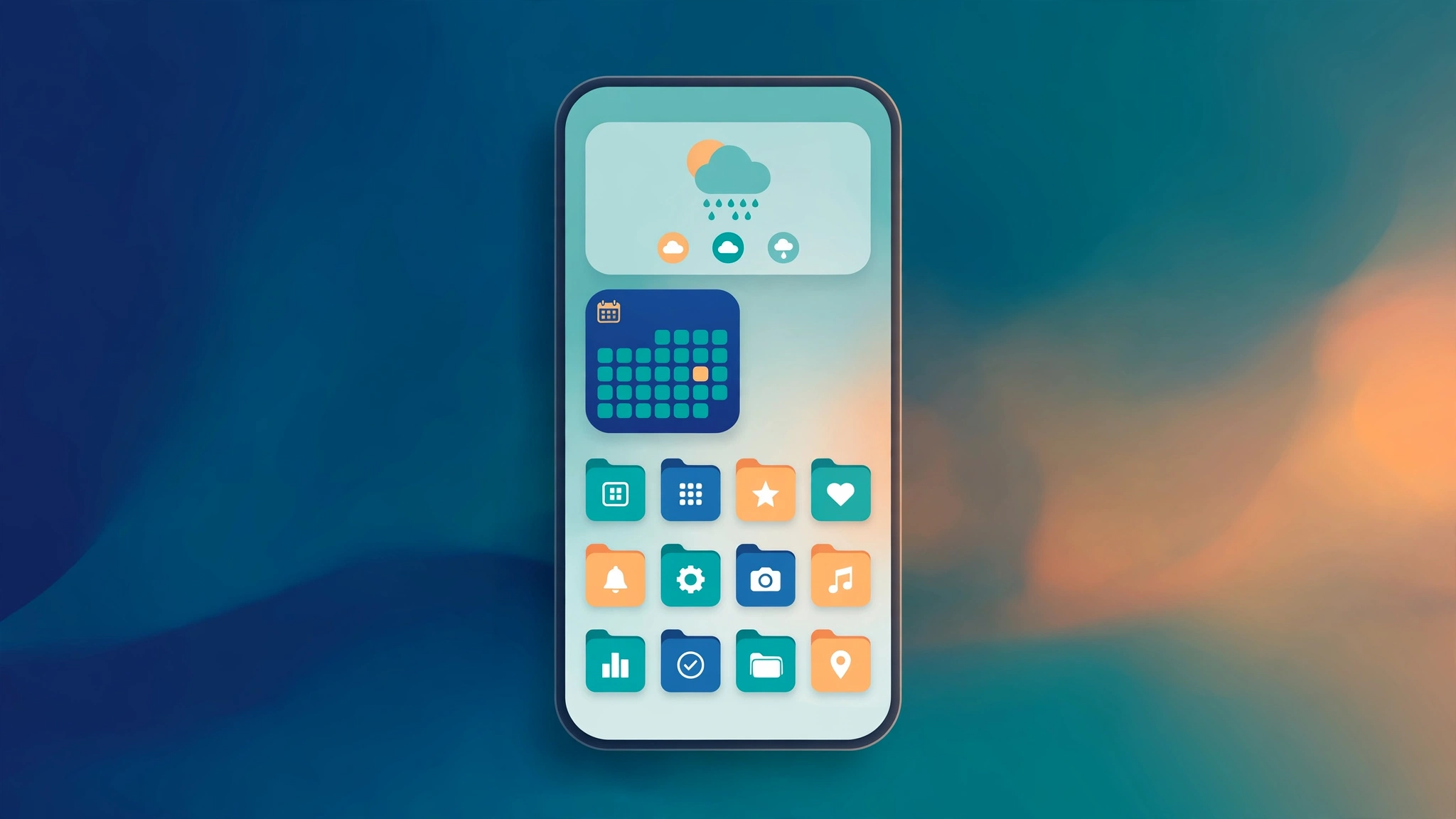
Microsoft Launcher is a free replacement for the home screen that came with your Android phone. It changes how your apps are arranged, how you search, which widgets you see, and what happens when you swipe left from your home screen. It does not change Android itself. Your apps, photos, messages and settings stay where they are, and you can switch back to your phone's original launcher at any time without losing anything.
The launcher is built around three ideas. The first is a clean, organised home screen with customisable icon packs, gestures, folders and a dock that can hold more apps than the standard layout. The second is a personalised feed, reached by swiping right, that pulls together your calendar, tasks, notes, news and recent documents in one place. The third, and the one that sets it apart, is its link to Windows. Sign in with a Microsoft account and your phone can share photos, documents, notes and links with your PC, and continue browsing sessions you started on your computer.
Microsoft Launcher is free, with no adverts and no paid tier. There is no premium version hiding the best features behind a subscription, which already puts it ahead of several rivals that charge for icon gestures or backup. If you are building a shortlist of reliable free tools, our round-up of the best free Android apps of 2026 is a useful companion to this review.
Getting Started: Setup in Under Ten Minutes
Installing Microsoft Launcher takes only a few minutes, and the first-run guide does a good job of explaining each choice rather than rushing you through it. Download it from the Google Play Store, open it, and tap "Get started". You will be asked to choose a wallpaper, pick a colour theme, and decide whether to import the layout from your current launcher. Importing is the sensible choice for most people, because it keeps your existing folders and app positions instead of starting from a blank screen.
You will then be offered the chance to sign in with a Microsoft account. This step is optional, but it unlocks the Windows features, the feed's calendar and tasks, and backup of your launcher layout. If you do not have a Microsoft account, you can skip it and still use the launcher, though you will miss the parts that make it special. Signing in also lets you restore your layout on a new phone, which is a small mercy when you upgrade handsets and do not want to rebuild everything by hand.
The setup asks for a handful of permissions, and it asks you to set Microsoft Launcher as your default home app. Android will show a system prompt for that last step, which is normal for any launcher. Once that is done, spend ten minutes in the Launcher Settings menu, reached by long-pressing a blank area of the home screen. That is where the useful controls live, including icon size, app drawer style, gesture shortcuts and the feed's content sources.
Home Screen, Feed and Customisation
The home screen itself is deliberately restrained. You get the familiar grid of icons and widgets, a dock at the bottom, and an app drawer that can be sorted alphabetically, by most used, or by custom folders. Icon packs from the Play Store work here, and Microsoft's own icon set is clean and consistent, with soft shapes that suit most wallpapers. You can change icon size, label size, grid dimensions and folder appearance, and you can hide apps from the drawer if you want a cleaner list without uninstalling anything.
The feed is the feature you will either love or switch off. Swipe right from the home screen and you will see a scrollable page with cards for your calendar, to-do list, sticky notes, recent files, news stories and a glance at your screen time. The calendar and tasks cards are genuinely helpful, because they show what is next without opening another app. The news section is more mixed. It is customisable by topic and source, and you can turn it off entirely if you prefer a feed that shows only your own information.
Customisation is solid rather than spectacular. You can change themes, accent colours, wallpaper and blur effects, set different layouts for portrait and landscape, and use double-tap and swipe gestures to open apps or lock the screen. What you cannot do is rebuild the launcher from the ground up. There is no support for custom icon shapes per app, no deep animation controls, and no scripting or advanced gesture system. If your idea of fun is spending an evening tuning every pixel, you will find the ceiling quickly. If you want a phone that looks smart with twenty minutes of effort, the balance is about right.
Windows Integration That Actually Matters
This is the section that decides the review for most readers. If you use a Windows PC, Microsoft Launcher earns its keep. If you do not, much of its appeal disappears, and a more customisable rival may suit you better.
The headline feature is the link with the Phone Link app on Windows, which Microsoft Launcher supports directly. Once paired, you can view recent photos from your phone on your PC, copy text between devices, open phone notifications on your desktop, and in many cases run Android apps in a window on your computer. The photo sharing is the most reliable part: take a picture on your phone and it appears in the Windows Photos app or File Explorer without cables, email or cloud uploads. It is the kind of small convenience that becomes hard to give up once you are used to it.
The feed also pulls in your Microsoft 365 documents, so a Word file you edited on your PC appears as a recent item on your phone, ready to open in the mobile app. Sticky Notes sync across devices too, which is handy for shopping lists and quick reminders that you want in both places. What remains is practical rather than flashy: files, photos, notes and links moving between phone and computer with very little friction.
There are limits worth knowing. Some Phone Link features, such as running phone apps on your PC, depend on your phone model and your version of Windows, and they work best on newer Samsung and Surface devices. Older handsets may get photo and notification sync only. If you use a Mac or a Chromebook as your main computer, this section offers you very little, and you should judge the launcher on its home screen alone.
Performance, Battery and Everyday Reliability
A launcher runs all day, every day, so performance matters more than any single feature. The good news is that Microsoft Launcher is light and stable on most modern phones. On a mid-range handset it opens apps quickly, scrolls smoothly, and rarely stutters when switching between the home screen and the feed. The app drawer loads fast even with several hundred apps installed, and search results appear as you type rather than after a noticeable pause.
Battery use is modest. In normal use, the launcher itself should account for only a small share of your daily battery drain, well behind the screen, mobile data and social media apps. The feed's background refresh is the one area to watch. If you enable every card, including news and weather updates, the launcher will wake more often to fetch fresh content. Turning off the news cards keeps that in check without losing the calendar and tasks that make the feed useful.
Reliability is one of the launcher's quiet strengths. Crashes are rare, updates arrive regularly through the Play Store, and the layout backup means a factory reset or a new phone does not mean starting from scratch. The launcher also respects Android's own gestures and navigation, so it does not fight the system the way some heavily customised launchers can. One minor annoyance is that after a major update, a setting or two can revert to its default, usually a wallpaper or a feed card.
Widgets, Gestures and Search
Widgets are where Microsoft Launcher shows its Microsoft heritage most clearly, and they are better than the widgets most launchers ship with. The calendar widget is clear and readable, the to-do widget lets you tick off tasks without opening the app, and the sticky notes widget keeps a short note visible on your home screen. There is also a useful screen-time widget that shows how long you have spent in your most-used apps. Third-party widgets from your other apps work normally too, so you are not limited to Microsoft's own set.
Gestures are simple and well chosen. Double-tap to lock the screen, swipe up for the app drawer, and swipe down for notifications are all supported, and you can assign a gesture to open a specific app or shortcut. The gestures feel responsive, and unlike some launchers, they do not conflict with Android's own swipe navigation.
Search deserves a mention because it is better than it looks. Tap the search bar and you can search installed apps, contacts, settings, files and the web from one place, with results grouped clearly. It also searches the web through Bing by default, which some people will want to change. You can switch the search provider in the settings if you prefer another search engine, though the option is not as prominent as it should be.
Microsoft Launcher vs Nova Launcher
No Microsoft Launcher review would be complete without comparing it with Nova Launcher, the long-standing favourite for Android customisation. The two launchers aim at different people, and the table below makes the trade-off clear. Nova gives you more control over almost everything, while Microsoft gives you a better connection to Windows and a more useful feed out of the box.
| Feature | Microsoft Launcher | Nova Launcher |
|---|---|---|
| Price | Free, no adverts, no paid tier | Free version; Prime unlocks extra features |
| Windows integration | Strong: photos, notes, files, Phone Link | None built in |
| Customisation depth | Good: themes, icons, gestures, feed | Excellent: grids, animations, icon controls, gestures |
| Feed | Calendar, tasks, notes, news and files | Google Discover feed only |
| Widgets | Strong Microsoft widgets included | Depends on third-party widgets |
| Backup and restore | Microsoft account backup | Local and cloud backup with Prime |
| Ease of use | Very easy, guided setup | Easy to start, deep settings to learn |
| Best for | Windows users who want a tidy phone | Customisation fans who want full control |
The choice is straightforward once you know which camp you are in. Choose Microsoft Launcher if you use a Windows PC daily, you like the idea of your calendar and tasks on your home screen, and you want a launcher that looks good with minimal effort. Choose Nova Launcher if you enjoy fine-tuning your home screen, you want the deepest gesture and animation controls, or you have no interest in Microsoft services. Our full Nova Launcher Prime review looks at the paid version in detail if you are weighing the two side by side.
Privacy, Permissions and Ads
Microsoft Launcher is free and carries no adverts, which is a genuine advantage in a category where free launchers often pay their way with banner ads or sponsored content. The trade-off is data: the launcher works best when it can see your calendar, contacts, location for weather, and files for the feed, and signing in with a Microsoft account means your layout and some activity are tied to that account. Microsoft states that it collects diagnostic and usage data to improve the app, and you can limit some of that in the launcher settings and in your Microsoft account privacy dashboard.
The permissions it asks for are, for the most part, reasonable for what it does. Calendar access powers the calendar card, contacts access powers search and the feed, and storage access powers wallpapers and file cards. You can decline individual permissions and the launcher will still work, though the related card will show less or nothing at all. Grant the permissions that serve a feature you actually use, and leave the rest off.
One sensible habit is to keep your passwords out of any launcher or browser sync you do not fully trust, and to use a dedicated password manager instead. If you have not set one up yet, our Bitwarden review for Android explains how a free, open-source password manager works on a phone. As with any app, install Microsoft Launcher only from the official Google Play Store listing, and never sideload a modified launcher APK from a third-party site promising extra features. Modified launchers sit at the heart of your phone, with access to everything you open, so a tampered copy is a serious security risk.
Frequently Asked Questions
Is Microsoft Launcher free?
Yes. Microsoft Launcher is completely free to download and use, with no adverts and no paid tier. Every feature, including Windows integration, widgets, gestures and layout backup, is included at no cost, though some Windows features need a Microsoft account and a compatible PC.
Is Microsoft Launcher good for Windows users?
Yes, it is one of the best choices for Windows users. Photo sharing, Sticky Notes sync, recent documents and Phone Link integration work well together, and the feed puts your calendar and tasks on your home screen. If you do not use Windows, those advantages disappear and the launcher is simply a clean, capable free option.
Does Microsoft Launcher drain battery?
In normal use, no. Battery use is modest, and the launcher should account for only a small share of daily drain. The feed's news and weather cards can increase background activity, so turn off cards you do not use if you notice higher drain on an older phone.
Can I go back to my old launcher after trying Microsoft Launcher?
Yes. Install Microsoft Launcher, try it for as long as you like, and switch back at any time from Android Settings, under Default apps and then Home app. Your apps, photos and settings are untouched, and you can uninstall Microsoft Launcher afterwards if you decide not to keep it.
Is Microsoft Launcher safe to install?
Yes, when installed from the official Google Play Store listing. Check that the developer is listed as Microsoft Corporation before installing, keep the app updated, and avoid modified APKs from third-party sites. Review the permissions it asks for and grant only the ones that support features you use.
The Verdict
Microsoft Launcher is the best launcher for Windows users, and a very good free launcher for everyone else. It will not win a customisation contest against Nova Launcher, and it does not try to. Its strengths are different: a tidy home screen that needs little effort, a feed that shows your day, useful widgets, steady performance and a Windows connection that saves real time if you work on a PC. With no adverts or paid tiers, and the ability to switch back at any time, there is no risk in trying it.
Try it for a week with your Microsoft account signed in and the feed set to show only your calendar, tasks and notes. If the photo sync and document cards start saving you time by day three, keep it. If you find yourself missing deeper customisation, or you never touch the Windows features, move on without regret. For more honest Android app reviews in the same style, browse the App Reviews section and find the next app worth your home screen.