Last updated: November 2026
This Brave browser Android review answers the question a lot of Android users are asking in 2026: can you get a browser that blocks adverts and trackers by default without giving up the speed and convenience of Chrome? Brave has built its whole reputation on that promise. It is a free, Chromium-based browser, which means it looks and feels familiar to anyone coming from Chrome, but it ships with aggressive tracker and advert blocking switched on from the first launch. No extensions to install, no settings maze to navigate before the privacy features start working.
In this review we look at what Brave actually does on an Android phone in everyday use: how its Shields feature works, whether pages genuinely load faster, what Brave Rewards and BAT are really about, how sync and tabs hold up, and where the browser falls short. We also compare it directly with Chrome and Firefox, and finish with the settings worth changing after you install it.
What Makes Brave Different on Android

Brave is built on Chromium, the same open-source engine underneath Google Chrome, Microsoft Edge and several other browsers. That matters more than it sounds. Because it shares Chrome’s engine, Brave renders websites the same way, supports the same web standards, and works with the sites and web apps you already use. The layout is familiar too: an address bar, tabs, a menu button, and the same long-press and swipe habits you already have.
The difference is what Brave does with that engine. Where Chrome sends your browsing data to Google’s advertising systems and relies on extensions for blocking, Brave strips out the advertising and tracking machinery and builds blocking in as a core feature. Trackers, third-party cookies, fingerprinting scripts and intrusive adverts are blocked by default, before they ever load.
Brave is free to download and use, with no premium tier locking away the privacy features. The company makes its money through optional advertising in the Rewards programme and search partnerships, not by charging for the browser.
For Android users, the other practical difference is independence from Google’s account system. You can use Brave without signing in to anything, and Brave Sync works through a sync chain code rather than a Google account. If you like Chrome but dislike the feeling that your browser is also a data collection tool, that combination — familiar engine, different defaults — is the whole appeal.
Brave Shields: The Privacy Engine
Shields is the name Brave gives to its built-in blocking system, and it is the single most important feature in this review. Tap the lion icon in the address bar on any page and you get a small panel showing exactly what Brave has blocked on that page: trackers, adverts, scripts, fingerprinting attempts and cookies. You can adjust the settings for that one site without touching your global settings, which is useful when a site breaks.
By default, Shields blocks third-party trackers and cookies, upgrades connections to HTTPS where possible, and blocks scripts that try to fingerprint your device — the technique sites use to identify you even when you clear cookies or use private mode. It also blocks most display adverts, including many video adverts, which is the part most users notice first. Pages look cleaner, and there is noticeably less clutter on news sites and blogs.
The practical upside is real, though. Because so much tracking and advertising content never loads, pages are lighter, and that shows up in the next section.
Speed and Battery Life in Daily Use
The most common claim about Brave is that it is faster than Chrome, and there is a straightforward reason for it: blocking adverts and trackers means your phone downloads less data and runs less JavaScript on every page. On advert-heavy news sites, the difference is easy to feel — pages finish loading sooner, scrolling is smoother, and there are fewer layout jumps as late-loading adverts push content around.
On ordinary, clean sites, the difference is smaller, because there is less to block. Brave and Chrome use the same engine, so on a well-built page they perform much the same. Where Brave pulls ahead is the messy, advert-saturated web that makes up a lot of daily browsing: news, blogs, forums and recipe sites.
Battery life follows the same logic. Less data downloaded and fewer scripts running means less work for the processor and the radio, which should mean less battery drain over a browsing session. In practice, the saving is modest — browsing is not the biggest battery drain on most phones, and your screen brightness and signal strength matter more.
One more practical point: Brave on Android supports background video playback and a built-in playlist feature, so you can keep a video’s audio playing while you switch to another app. That is a handy extra that Chrome reserves for its paying subscribers on YouTube, and it costs nothing in Brave.
Brave Rewards and the BAT Question
Brave Rewards is the part of Brave that confuses people most, so it deserves a plain explanation. In short, Brave offers you the option to see a small number of privacy-respecting adverts — shown as system notifications, not injected into web pages — and earn Basic Attention Tokens (BAT) for viewing them. You can then tip the websites and creators you like, or hold the tokens in a wallet. It is entirely optional, and it is switched off by default.
For most users, the honest assessment is that Rewards is a curiosity rather than a reason to switch browsers. The amount of BAT earned from casual browsing is small, and turning tokens into real money involves a wallet and an exchange, which is more effort than most people will bother with. The tipping idea is nice in principle — it gives you a way to support sites without seeing their adverts — but in practice, few users set it up and keep it going.
There is also a settings question. Brave has been criticised in the past for shipping with referral links and for features that some users did not ask for. The current version is cleaner, but it is worth knowing that Rewards, the Brave News feed and the crypto wallet are all present in the app, and you may want to turn off the ones you do not use.
The verdict on Rewards is simple: leave it off unless the idea genuinely appeals to you. Brave is worth using for Shields alone, and Rewards adds nothing to the core browsing experience.
Tabs, Sync and the Everyday Experience
A browser lives or dies on the boring daily details, and Brave handles them well. Tab management on Android is solid: you can open tabs in the standard grid or list view, group tabs together, close all tabs with one tap, and reopen a closed tab if you swiped it away by mistake. Private tabs open in a separate space, and there is an option to clear browsing data automatically when you close private tabs.
Brave Sync keeps your bookmarks, history, passwords and open tabs consistent across your phone, tablet and computer without a Google account. You set it up by creating a sync chain and scanning a code or entering a phrase on your other device. It works reliably once set up, though the code-based system is slightly more fiddly than signing in with a Google account, and you need to keep your sync code safe — if you lose all your synced devices, there is no password reset to rescue you.
Other details worth knowing: Brave has a built-in password manager, a reader view that strips a page down to clean text, and a download manager that handles files sensibly. The bottom toolbar option, which puts navigation within thumb reach on tall phones, is a small touch that makes one-handed browsing easier. Dark mode follows your system setting.
Brave vs Chrome vs Firefox on Android
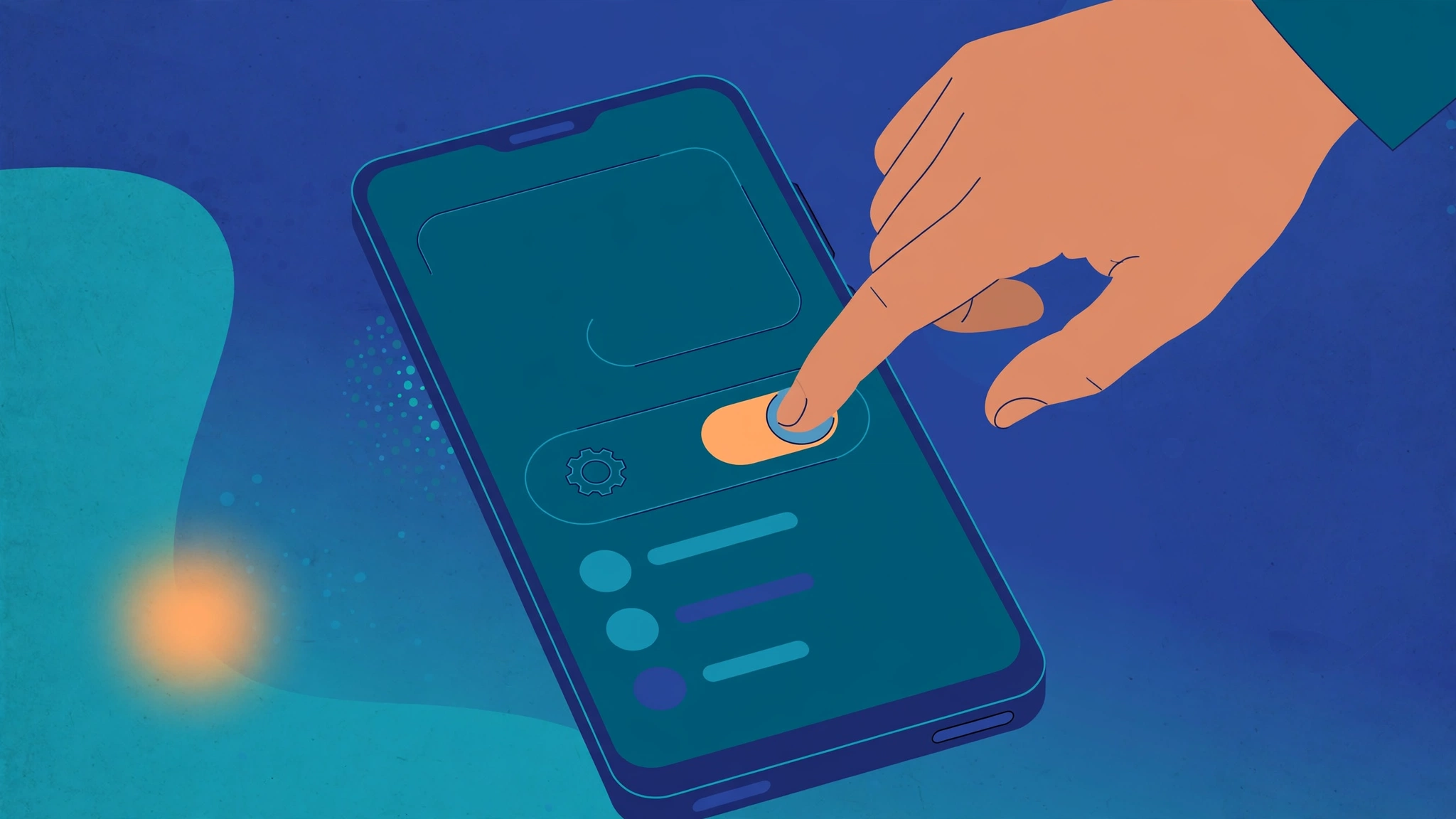
The comparison table below sums up the practical differences between the three browsers most Android users choose between. Chrome is the default, Firefox is the independent alternative with extension support, and Brave sits between them: Chrome’s engine with Firefox’s privacy attitude.
| Feature | Brave | Chrome | Firefox |
|---|---|---|---|
| Advert and tracker blocking | Built in, on by default | None by default; needs extensions | Enhanced Tracking Protection built in |
| Engine | Chromium | Chromium | Gecko |
| Account needed | No; sync via code | Google account | Firefox account (optional) |
| Extensions on Android | Not supported | Not supported | Supported (limited set) |
| Background video playback | Built in, free | Needs a YouTube subscription | Possible via add-ons |
| Private browsing extras | Private tabs, Tor option in private mode | Incognito tabs | Private tabs, tracking protection |
| Best for | Privacy without setup | Google services integration | Customisation and extensions |
Choosing between them comes down to what you value most. If your life is built around Google services — Gmail, Drive, Docs, YouTube — Chrome’s integration is genuinely convenient, and Brave cannot match it. If you want to customise your browser with extensions, Firefox is the only one of the three that allows it on Android. If you want strong privacy with zero setup and the familiar feel of Chrome, Brave is the easiest switch.
It is also worth saying that Brave is not the only privacy-focused browser. Firefox with strict tracking protection is a strong alternative, and DuckDuckGo’s browser is simpler still for users who want the bare minimum of fuss. Brave’s advantage is that it combines Chrome’s compatibility with genuinely strong defaults, and that combination suits more people than either extreme. Our Nova Launcher Prime review covers another app that rewards a little setup with a much better daily experience, in the same spirit.
Privacy Settings Worth Changing After Install
Brave is good out of the box, but a few minutes in settings makes it better. First, open the Shields settings and set fingerprinting protection to its strictest level if you want maximum privacy — the standard setting is a good balance, but strict blocks more, at the cost of occasionally breaking a site. If a site does break, use the lion icon to relax Shields for that site only, rather than turning protection off everywhere.
Second, look at the privacy settings and turn on “Clear data on exit” for the items you care about, or at least set private tabs to clear automatically. Also check that “Allow sites to check if you have payment methods saved” is off unless you use it, and review the permissions for location, camera and microphone so sites have to ask each time.
Finally, check the search engine setting. Brave defaults to its own search engine, Brave Search, which is private and independent but returns different results from Google. If you miss Google’s results, you can switch the default search engine back in settings — you do not have to use Brave Search to use Brave.
Where Brave Falls Short
No review is honest without the downsides, and Brave has several worth weighing. The first is trust. Brave is a small company compared with Google or Mozilla, and it has made mistakes that damaged its reputation with exactly the privacy-conscious users it courts — most notably adding referral codes to links without clearly telling users, years ago. The company apologised and changed the behaviour, but if your trust in a browser company matters to you, that history is part of the picture.
The second is the clutter. Brave ships with Rewards, a crypto wallet, a news feed, a VPN service, a playlist and a Leo AI assistant. Each one is optional, but together they make the browser feel busier than its privacy-first pitch suggests. Chrome is simpler to look at, and Firefox is simpler to understand.
The third is compatibility quirks. Because Brave blocks so much by default, some sites break: a payment page that will not load, a video that will not play, a login that loops. The fix is usually one tap on the Shields icon, but it can be confusing the first few times, especially if you do not realise Shields is the cause.
Is Brave Safe to Download?
Brave is safe to download, provided you get it from an official source. The safest route is the Google Play Store listing published by Brave Software, or the download page on Brave’s official website. Avoid third-party APK sites offering modified or “premium” versions of Brave — there is no premium version, so any site offering one is not legitimate, and modified browsers can contain anything.
One caution applies to any privacy browser: Brave protects you from trackers and adverts, but it does not protect you from yourself. It will not stop you entering your password on a fake login page, and it will not make a shady website trustworthy. Keep the usual habits — check the address bar, be wary of unexpected download prompts, and use a password manager. Speaking of which, if you want a dedicated tool for that job, our Bitwarden Android review explains why a standalone password manager pairs well with any browser.
Frequently Asked Questions
Is Brave browser free on Android?
Yes. Brave is completely free to download and use on Android, with no subscription and no premium tier. All of the privacy features, including Shields, are included at no cost. The optional Brave Rewards programme is also free to join, and you never have to pay to use the browser itself.
Is Brave better than Chrome on Android?
It depends on what you want. Brave blocks adverts and trackers by default, which makes pages load faster and keeps your browsing more private, and it does not need a Google account. Chrome integrates more deeply with Google services such as Gmail, Drive and YouTube. If privacy matters more to you than Google integration, Brave is the better choice; if you live inside Google’s services, Chrome may suit you better.
Does Brave block YouTube adverts on Android?
Brave blocks many adverts on YouTube in the browser, including pre-roll video adverts in many cases, because Shields blocks the advertising scripts that serve them. It also supports background playback, so audio keeps playing when you switch apps. However, YouTube changes its advertising systems regularly, so blocking is not guaranteed to work perfectly all the time.
Does Brave use more battery than Chrome?
Generally, no — Brave tends to use slightly less battery during heavy browsing, because blocking adverts and trackers means the phone downloads less data and runs fewer scripts. The difference is modest, though, and screen brightness and signal strength affect battery far more than your choice of browser.
Can I sync Brave between Android and my computer?
Yes. Brave Sync keeps bookmarks, history, passwords and open tabs in step across Android, Windows, macOS and Linux using a sync chain code rather than an account. Set it up from the settings menu on each device, scan the code or enter the sync phrase, and keep the code safe — there is no password reset if you lose all your synced devices.
The Verdict
So, is Brave worth switching to on Android in 2026? For most people, yes. It takes the browser engine you already know and pairs it with the strongest privacy defaults of any mainstream browser, switched on from the first launch. Shields blocks trackers and adverts without extensions, pages load faster on advert-heavy sites, and the browser is free, with no account required and no premium tier holding features back.
It is not perfect. The extra features — Rewards, the wallet, the news feed — add clutter, the company’s past mistakes are worth knowing about, and some sites will need a tap on the Shields icon before they work properly. Firefox remains the better choice if you want extensions or a fully independent engine, and Chrome still wins on Google integration. But for the largest group of users — people who want Chrome’s familiarity with real privacy built in — Brave is the most convincing option on Android today.
Install it from the official Google Play Store listing, spend five minutes on the settings in this review, and give it a week of real browsing before you judge it. If it fits, make it your default; if it does not, uninstalling it is as easy as installing it. For more honest reviews of the apps worth your home screen — starting with our round-up of the best free Android apps in 2026 — browse the App Reviews section and find the next app to try.